
How to Navigate the ActiveLayer Dashboard in WordPress
Would you like a quick overview of how ActiveLayer is protecting your WordPress site?
The ActiveLayer Dashboard brings your spam stats, your integrations, and helpful links together on a single page in your WordPress dashboard.
This tutorial will show you how to open the Dashboard, read your spam stats, check your integrations, and use the quick links.
In This Article:
Viewing Your ActiveLayer Dashboard
To get started, go to ActiveLayer » Dashboard in your WordPress dashboard.
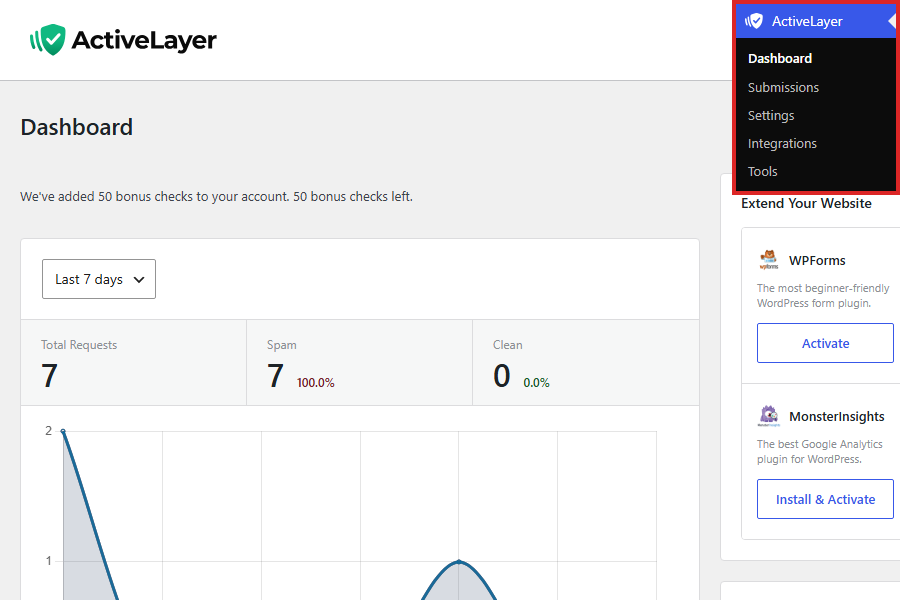
A short status message may appear below the Dashboard heading. It tells you about anything that affects your spam protection, like bonus checks added to your account.
Note: If ActiveLayer isn’t connected, or you’ve used all the spam checks on your plan, the message tells you that new submissions aren’t being checked. It also includes a link to fix it.
Next, you’ll see what your spam stats mean.
Reading Your Spam Stats
The stats box shows 3 numbers:
- Total Requests: Every submission ActiveLayer has logged on your site.
- Spam: Submissions ActiveLayer marked as spam, with their share of the total.
- Clean: Submissions ActiveLayer marked as clean, with their share of the total.
Below the numbers, a chart shows your submissions day by day. It covers the last 7 days by default. To change how many days the chart covers, choose Last 7 days or Last 30 days from the dropdown.
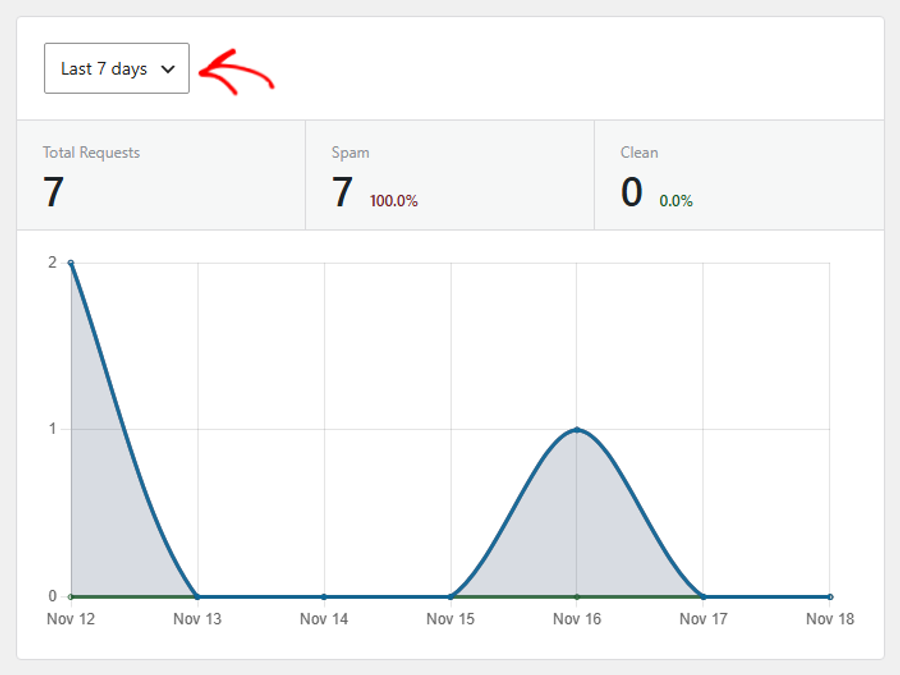
Note: The dropdown only changes the chart. The 3 numbers always count every submission ActiveLayer has stored on your site.
Next, you’ll check which integrations are protecting your site.
Checking Your Integrations
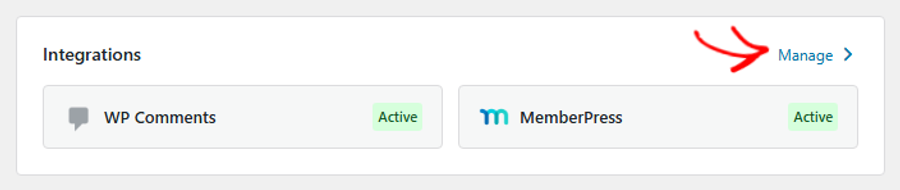
The Integrations box lists the plugins ActiveLayer protects on your site. WP Comments is always listed. Other plugins only appear while they’re installed and active.
Each one shows an Active badge when its protection is on and your API key is connected. If it shows Paused, its protection is turned off or your API key isn’t connected yet.
To turn an integration on or off, or to change its settings, click Manage. This opens the ActiveLayer » Integrations page.
Next, you’ll find the quick links in the sidebar.
Using Quick Access Links
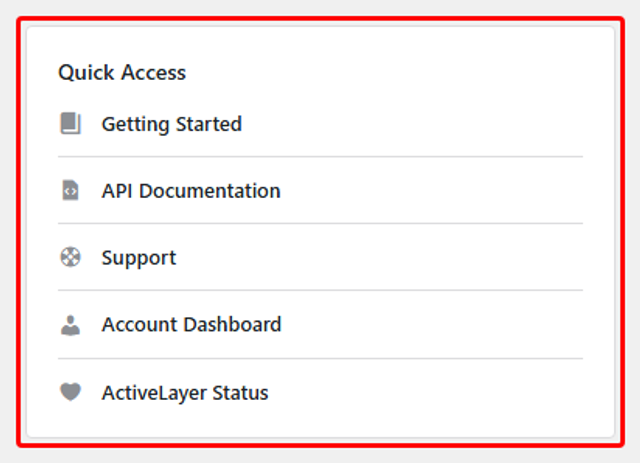
The Quick Access box on the right side of the Dashboard links to useful ActiveLayer pages:
- Getting Started: The ActiveLayer WordPress plugin docs.
- API Documentation: The ActiveLayer API docs, for developers.
- Support: The ActiveLayer contact page.
- Account Dashboard: Your ActiveLayer account at app.activelayer.com, where you manage projects, API keys, and billing.
- ActiveLayer Status: The ActiveLayer service status page, at status.activelayer.com.
Next, you’ll see the plugin suggestions in the same sidebar.
Exploring Other Plugins
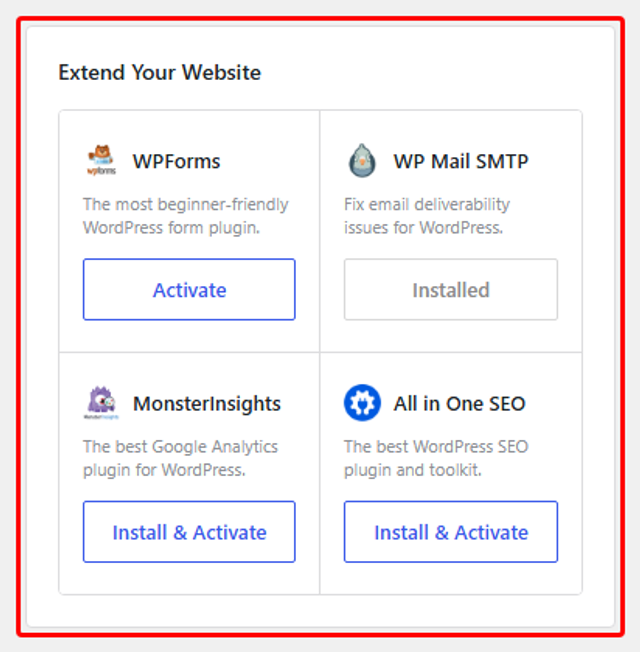
The Extend Your Website box suggests other plugins for your site, like WPForms and WP Mail SMTP. The button on each card shows where that plugin stands:
- Installed: The plugin is already active on your site.
- Activate: The plugin is installed but not active. Click it to turn the plugin on.
- Install & Activate: The plugin isn’t on your site yet. Click it to install and activate it in one step.
Note: If you’re on the free plan, the Dashboard also shows an Upgrade to Pro box that lists what the Pro plan includes.
That’s it! You now have a quick view of how ActiveLayer is keeping spam off your site, without asking real visitors to solve a CAPTCHA.
Next, would you like to protect other plugins on your site? ActiveLayer also works with WPForms, WooCommerce, Contact Form 7, and more. See all ActiveLayer integrations.
Still stuck? Contact ActiveLayer support, and we’ll help you get set up.
Frequently Asked Questions
Why don’t my stats change when I pick a different date range?
The date range dropdown only changes the chart. The Total Requests, Spam, and Clean numbers count every submission ActiveLayer has stored on your site, whatever range you pick.
Why are my stats lower than I expected?
ActiveLayer deletes old submissions after the period set in Submission Retention, under ActiveLayer » Settings. The default is 30 days. Deleted submissions no longer count toward your stats. To keep them, change the setting to a longer period or to Never (keep all).
Why doesn’t a plugin I use appear in the Integrations box?
The Integrations box only lists plugins ActiveLayer supports that are installed and active on your site. WP Comments is always listed. See all ActiveLayer integrations for the full list of supported plugins.
What does a Paused badge mean?
ActiveLayer isn’t checking that plugin’s submissions right now. Either its protection is turned off on the ActiveLayer » Integrations page, or your API key isn’t connected in ActiveLayer » Settings.