
How to Securely Share Login Credentials with Support
Updated: Jul 30, 2026
When support needs to look at your setup, share a password or API key through a one-time secret link rather than leaving it in an email thread.
Sometimes the fastest way for us to fix an issue is to log in and look at your setup ourselves. When that happens, the ActiveLayer support team may ask for a password, an API key, or another piece of login information.
Please do not send these details in a plain email or chat message. Anything typed directly into an email or a support reply stays in that thread indefinitely, sitting in inboxes and logs long after the issue is closed. Instead, we ask you to share credentials through SupportAlly Secrets, a free tool that turns any sensitive text into a private, self-destructing link.
Why we ask you to use a secret link
SupportAlly Secrets was built for exactly this situation: getting sensitive information to a support team without leaving a permanent copy behind. When you paste something into it, the tool stores it privately and gives you a link to share instead. There are three reasons we prefer it:
- It keeps secrets out of your email and chat logs. We only ever see the link, so your actual password or key never travels through, or sits inside, a message thread.
- It cleans up after itself. The stored secret is automatically removed once the support agent no longer needs it (and after 30 days at the latest), so it does not linger somewhere indefinitely.
- It takes about a minute. No account, no install, nothing to learn.
How to share a credential securely
Step 1: Get the credential ready
Before you create the link, have the exact information we asked for on hand. That might be a username and password, an API key, a license key, or a hosting login. Two tips that make this safer:
- If we asked for site or account access, create a temporary login for us where possible, rather than sharing your own main password.
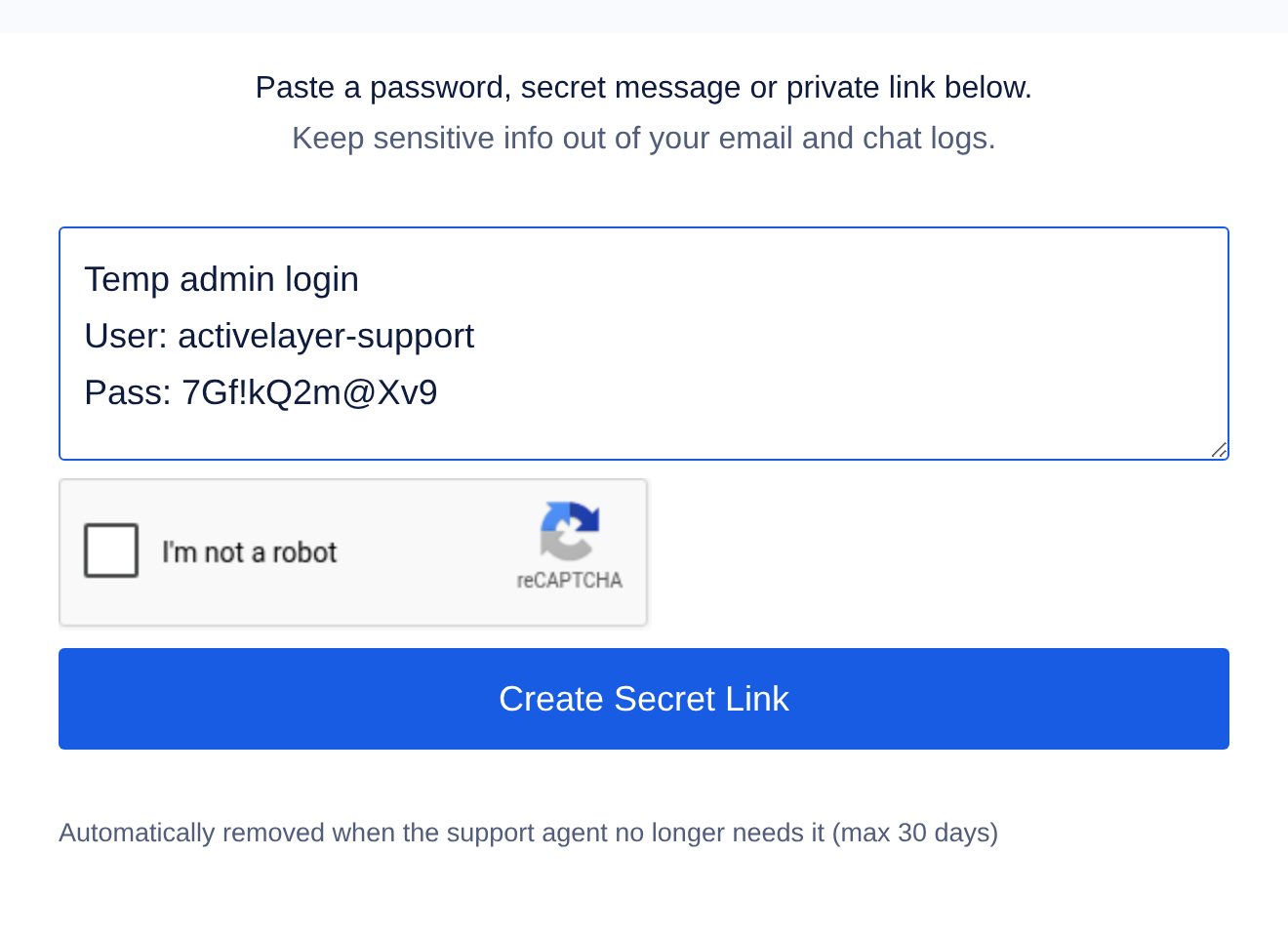
- Include a short label so we know what the credential is for, for example
Temp admin login for example.comfollowed by the username and password on their own lines.
Step 2: Open SupportAlly Secrets and paste the credential
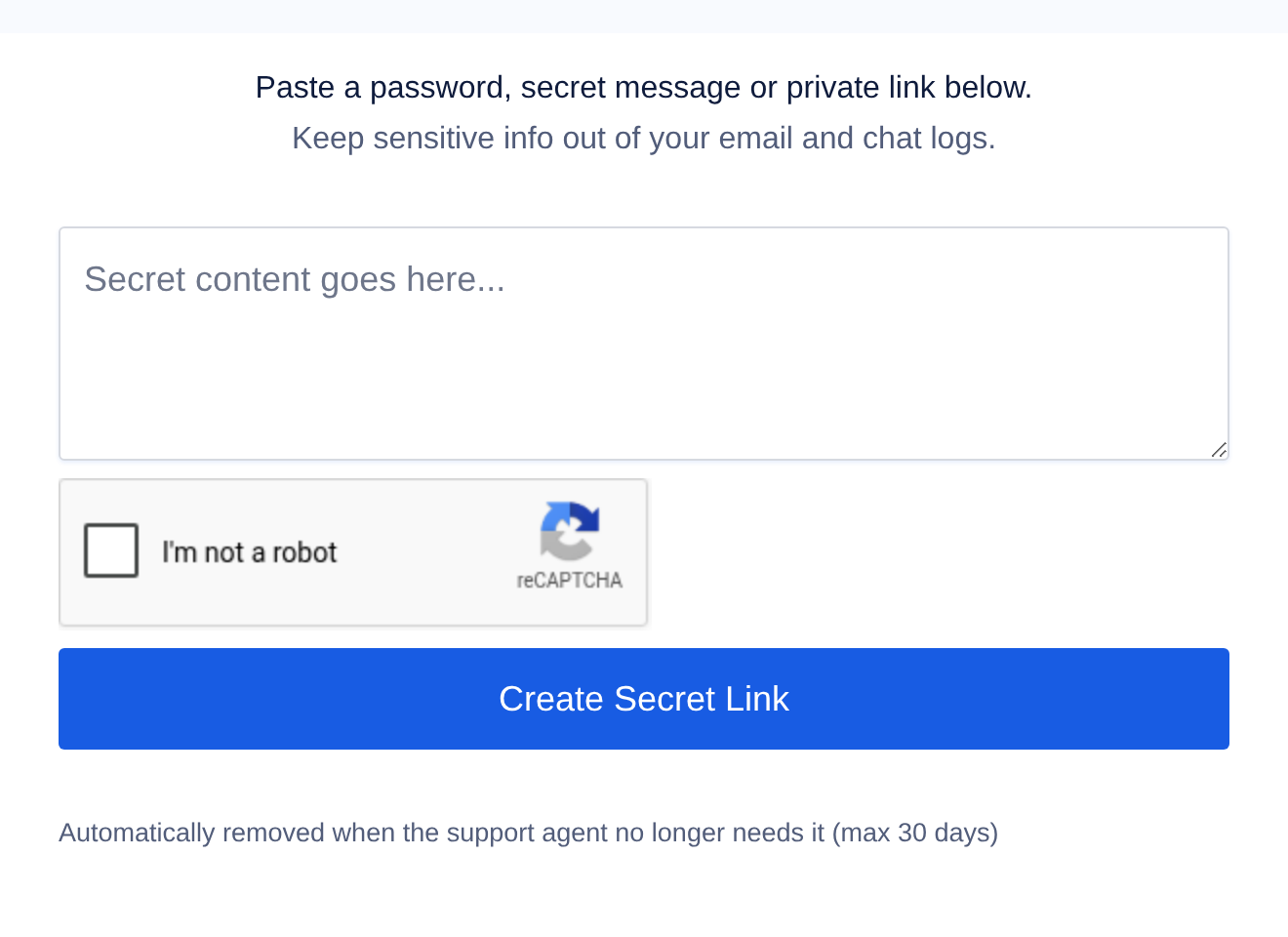
Go to secrets.supportally.com. You will see a single box labelled “Paste a password, secret message or private link below.” Type or paste your credential into that box.
Step 3: Confirm you are human and create the link
Tick the “I’m not a robot” checkbox, then click the blue Create Secret Link button. SupportAlly stores your text privately and generates a unique link on the same page.
Step 4: Copy the secret link
Once the link appears, click to copy it. This link, not the password, is the only thing you need to send us. Anyone who opens it sees the credential, so treat the link itself as sensitive and send it only to the ActiveLayer support team.
Step 5: Send us the link
Paste the copied link into your reply to our support email or ticket. That is all we need. When you send the link and not the raw credential, the sensitive text never becomes a permanent part of the conversation.
A few common questions
Is this safe?
Yes. The whole point of SupportAlly Secrets is to avoid leaving credentials in email and chat logs. The stored secret is removed automatically once it is no longer needed, and no later than 30 days.
Do I need an account?
No. There is nothing to sign up for and nothing to install. You just visit the page, paste, and create the link.
Can I use it for things other than passwords?
Yes. It works for any short piece of sensitive text: API keys, license keys, connection strings, or private notes. If in doubt about whether something is sensitive, send it as a secret link rather than in plain text.
What if I would rather not share credentials at all?
That is completely fine. Sharing login details is never required. Just let us know, and we will keep troubleshooting with the information you are comfortable providing.
Still have questions about sharing access with us? Reply to your support conversation and we will walk you through it.