
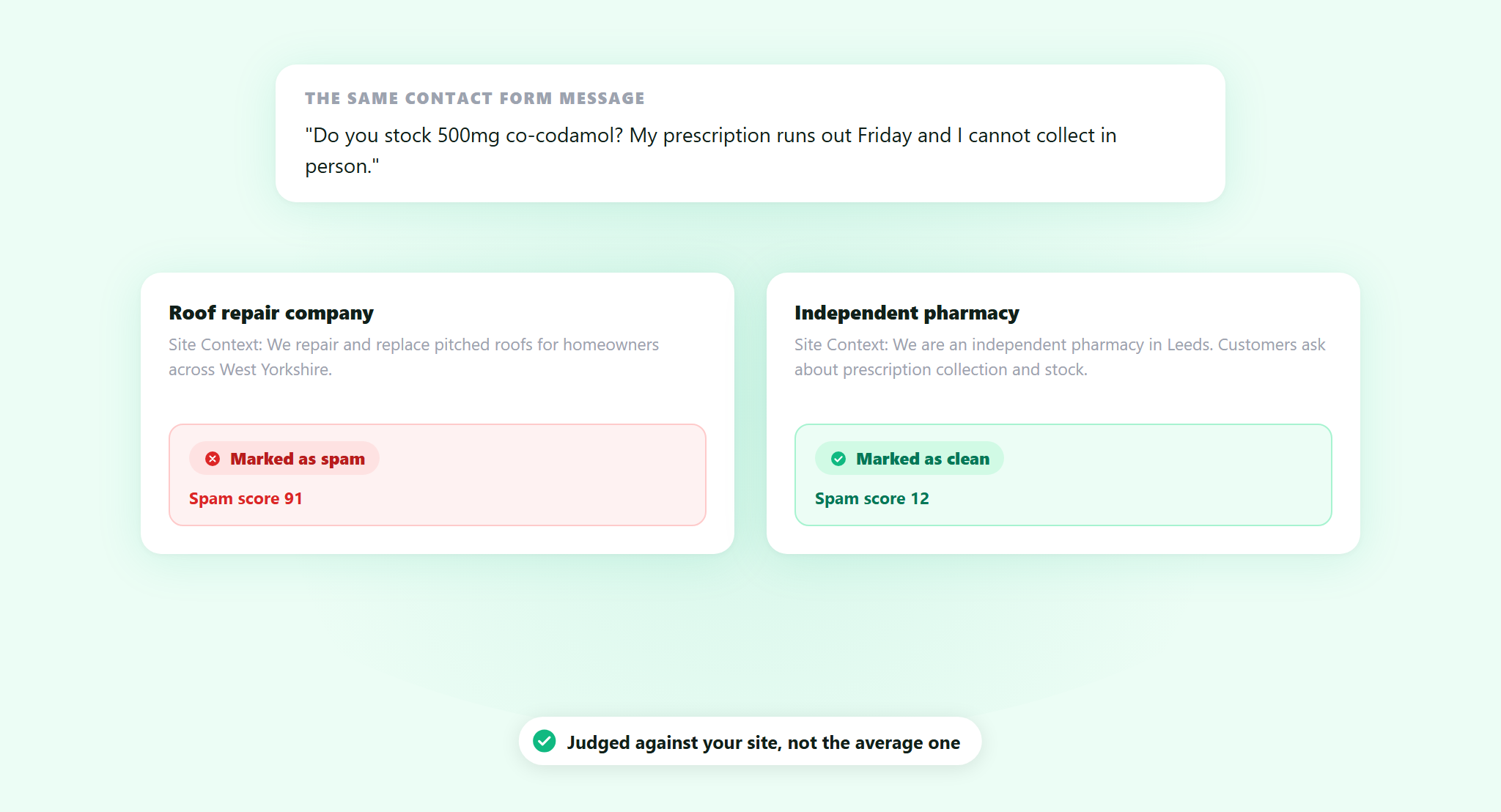
A message comes in through your contact form. It mentions dosages, a prescription, and a brand name for a painkiller. Is that spam?
If you run a roof repair company, almost certainly. If you run a pharmacy, that is a customer asking a normal question, and blocking it costs you a sale and probably a phone call complaining about your website.
ActiveLayer already reads a lot before it decides: the words, the links, the sender, the sending patterns and the behavioral signals. It does that well. What it had no way to know was the one thing you know without thinking: what your site is actually for. So a filter tuned to catch pharmaceutical spam across the whole web will sometimes catch a pharmacy.
Site Context is live. Tell the spam filter what your business does, and it judges against your site instead of against a generic idea of spam.
What Site Context changes
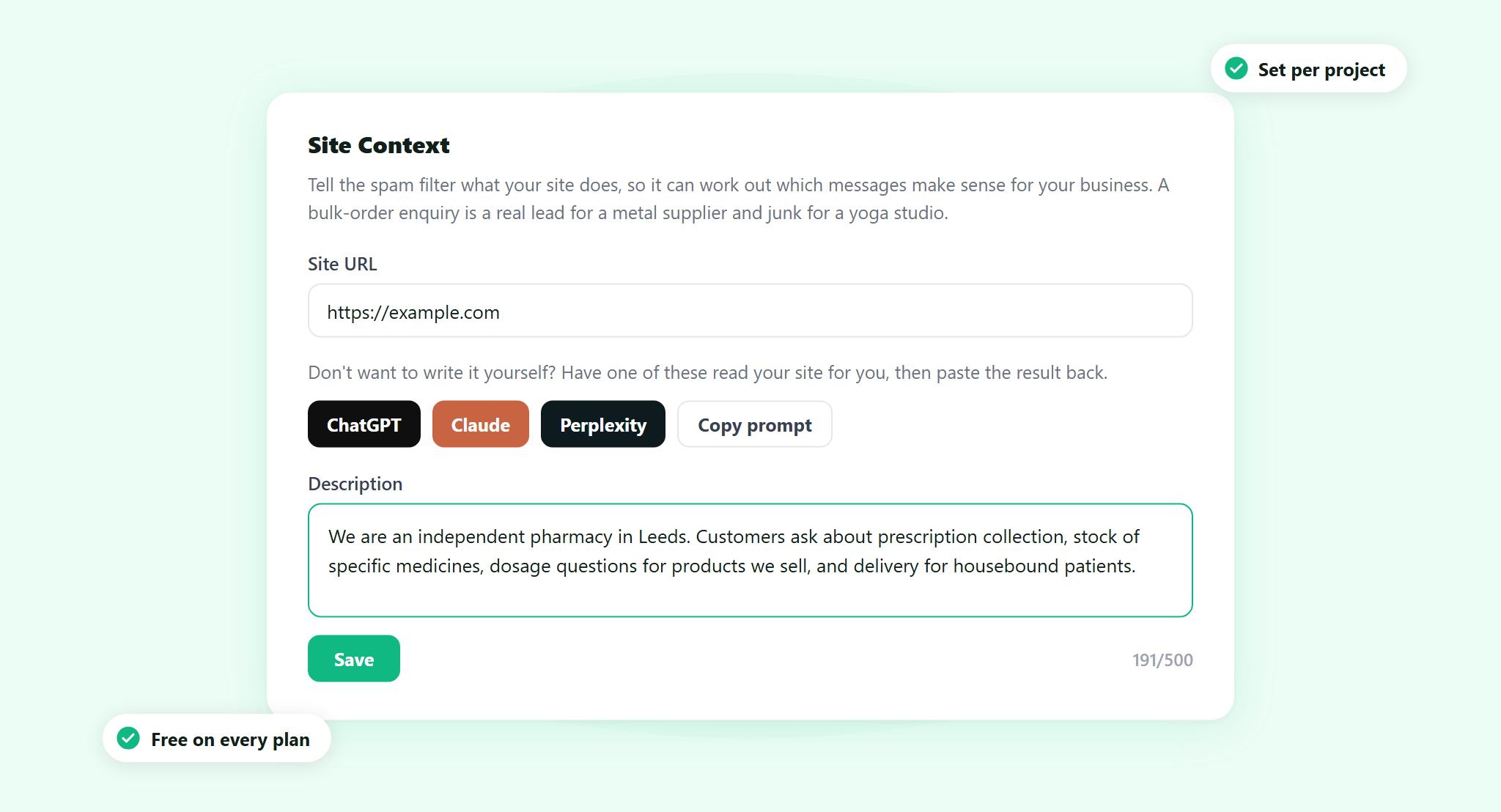
Site Context is a short description of your business that lives in your project’s settings, next to your site’s address. Two or three sentences: what you sell or do, who your customers are, and what your contact form legitimately receives.
The setting lives on the project. The same message can be a lead on one site and junk on another, and the filter now has enough to tell the difference. A bulk order inquiry is a real lead for a metal supplier and noise for a yoga studio. A message full of legal terminology belongs on a law firm’s form and nowhere near a bakery’s.
Leave it blank and nothing breaks. Your protection works exactly as it did before, judged against a general model of what spam looks like. Site Context is the difference between a filter that knows spam and a filter that knows your spam.
You do not have to write it yourself
A blank text box asking you to describe your own business is a small task that somehow takes twenty minutes. You know what your company does. Compressing it into three useful sentences is a different job.
So next to the field there are three buttons: ChatGPT, Claude and Perplexity. Each one opens that tool in a new tab with the prompt already written and your site’s address already in it. The assistant reads your site and writes the description, you copy it, and you paste it into the field. There is a Copy prompt button as well, if you use a different assistant. All four switch on once your Site URL is filled in, since that is what the prompt points at.
The prompt asks for the same three things every time: what the business sells or does, who its customers are, and what kinds of inquiries the contact form legitimately receives. Two or three sentences, under 500 characters, no preamble.
Nothing is connected. These are shortcuts that save you writing the prompt, not an integration. ActiveLayer does not call those tools, does not read anything back, and never sees the description until you paste it in and press Save. You see every word before it counts for anything.
Who this matters most for
It is worth setting on any site. It matters most on the ones where legitimate customers write things that look exactly like spam:
- Medical, dental and pharmacy. Patients name drugs and conditions. So do spambots.
- Legal and financial services. Real inquiries mention debt, settlements, claims and large sums, in the same vocabulary as the scams.
- B2B and wholesale. A stranger asking about bulk pricing and lead times is your best lead of the week, and reads like a template.
- Agencies and freelancers. Cold inquiries from people you have never met are the entire business model.
- Anything regional or non-English. A form that mostly receives one language has an obvious boundary, and the filter has no way to know it unless you say so.
If you have ever fished a real customer out of your spam folder, this is the setting for you.
Setting it up takes about a minute
1. Open the project’s settings
In app.activelayer.com go to Projects and click the gear icon on that project’s row. If you are already inside the project, the Settings button is at the top right. Site Context is the only thing on that page.
2. Fill in the Site URL
On a WordPress project this appears on its own once the plugin connects. On a brand new project, or one running straight off the API, it starts empty and you type it in. It is worth doing first: the generate buttons stay switched off until it is there.
3. Write the description, or generate it
Up to 500 characters, with a counter so you can see where you are. Click Save. The rest of the plugin’s settings are covered in the documentation.
That is the whole setup. It applies from the moment you save, on that project, whether your submissions arrive through the WordPress plugin or straight from the API. Nothing to install, no code, and nothing changes for your visitors.
How to write a context that actually helps
The filter is not reading your marketing. It is looking for the boundary between a message that makes sense for you and one that does not. Concrete beats polished.
This works: “We are an independent pharmacy in Leeds. Customers ask about prescription collection, stock of specific medicines, dosage questions for products we sell, and delivery for housebound patients.”
Thirty seconds to write, and it does the job. It names what the business is, who writes in, and what a real message asks for. The prescription inquiry from the top of this post fits that description. A note about discount pharmaceuticals from an unknown sender does not.
This does not: “We are a leading provider of innovative solutions, committed to excellence and customer satisfaction.”
That describes nothing. It fits a metal supplier, a yoga studio and a spambot equally well, so it gives the filter no boundary to work with. If your description would look fine on someone else’s homepage, rewrite it.
Three habits worth having. Name the actual products or services, not the category. Say what a normal inquiry asks for. Mention your language or region if your form mostly receives one.
Available on every plan
Site Context is part of ActiveLayer for everyone, including the free plan. There is no upgrade attached to it and no separate charge. Set it per project, so an agency running twenty client sites can give each one its own description.
Get started
Open a project, write three sentences about your business, and save. From then on your site is what the filter compares against, not the average site on the internet.
Questions about your site’s specific setup? Reach out. We read every message, and our team will help you get this running.