
How to Review and Manage ActiveLayer Submissions
Would you like to see exactly what ActiveLayer checked on your WordPress site, and correct it if needed?
ActiveLayer logs every submission it checks on the Submissions page, with the verdict it gave. You can review the details, fix a wrong verdict, and clean up old entries from one place.
This tutorial will show you how to find, view, and correct submissions, and manage them with bulk actions and the trash.
In This Article:
Understanding the Submissions List
To get started, go to ActiveLayer » Submissions in your WordPress dashboard.
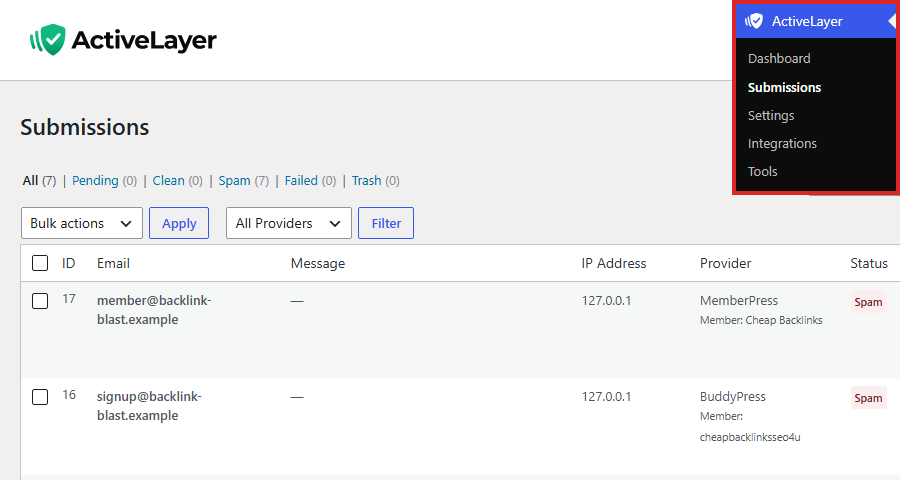
Each row is one submission ActiveLayer checked. The newest submissions are at the top. For each one, you’ll see:
- ID: ActiveLayer’s ID number for the submission.
- Email: The email address entered with the submission.
- Message: The message, if the form or comment had one.
- IP Address: The IP address the submission came from.
- Provider: The plugin it came from, with the form, post, or member name below it.
- Status: ActiveLayer’s verdict.
- Processed: When ActiveLayer checked it.
The Status column shows one of 4 verdicts:
- Clean: ActiveLayer found the submission to be genuine.
- Spam: ActiveLayer flagged the submission as spam.
- Pending: The submission is waiting to be checked in the background.
- Failed: ActiveLayer couldn’t finish checking the submission.
Next, you’ll see how to find specific submissions.
Filtering and Searching Submissions
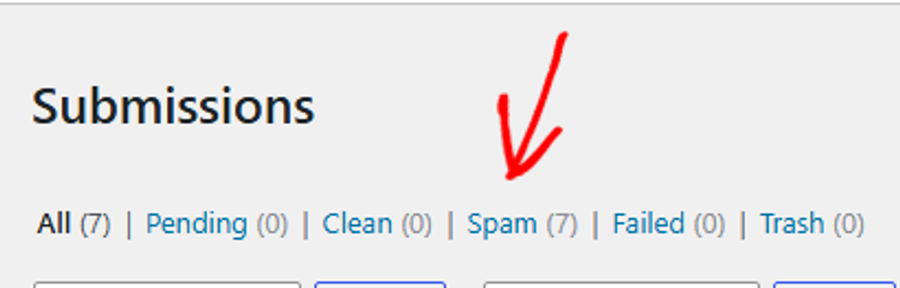
To see submissions with one status, click its link above the list, like Spam or Clean. The number next to each link shows how many submissions have that status.
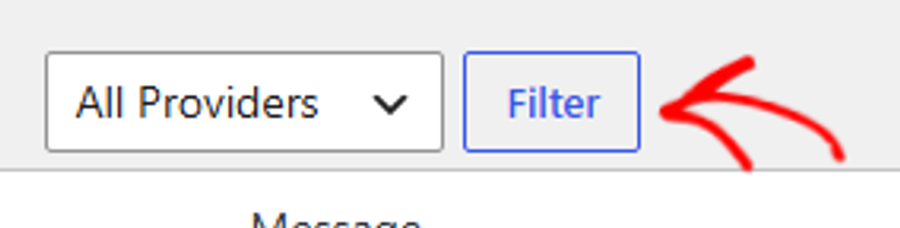
To see submissions from one plugin, choose it from the All Providers dropdown. Then, click Filter.
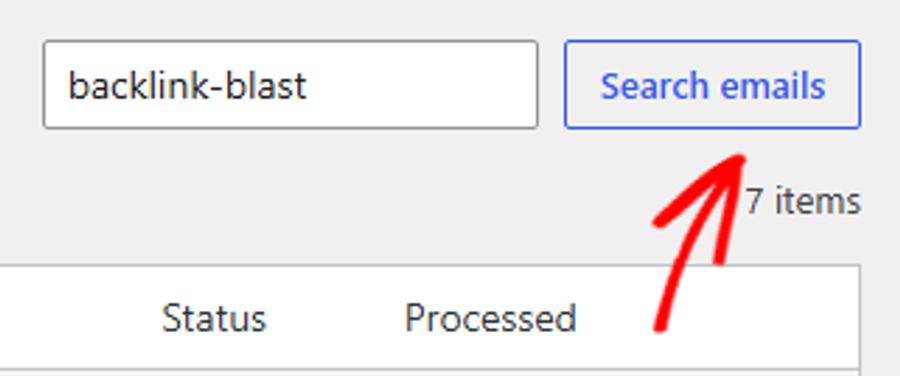
To find a submission by email address, enter all or part of the address in the search box at the top right. Then, click Search emails.
Once you’ve found the submission you want, you can open it to see everything ActiveLayer received.
Viewing a Submission
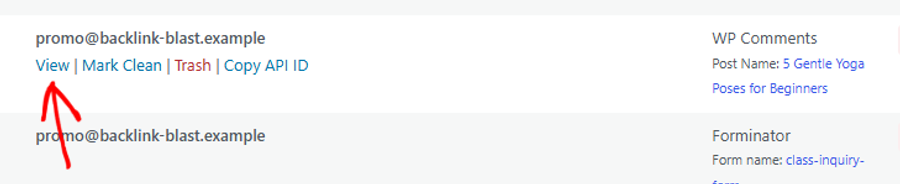
To see everything about a submission, hover over its row and click View.
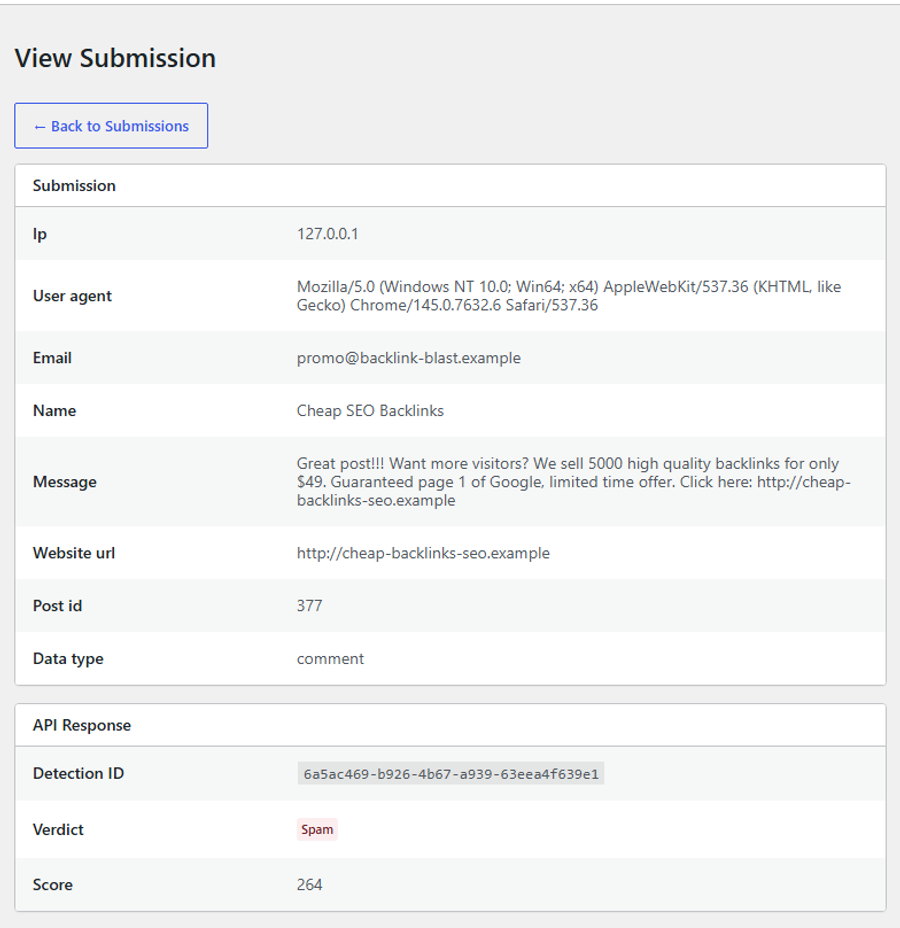
The View Submission page shows the data ActiveLayer received, like the visitor’s IP address, email, name, and message. Below it, the API Response box shows the submission’s Detection ID and ActiveLayer’s verdict.
Next, you’ll see how to correct a verdict.
Marking a Submission as Clean or Spam
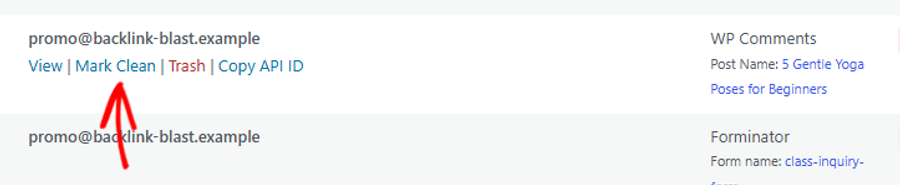
If ActiveLayer flags a real submission as spam by mistake, hover over its row and click Mark Clean.
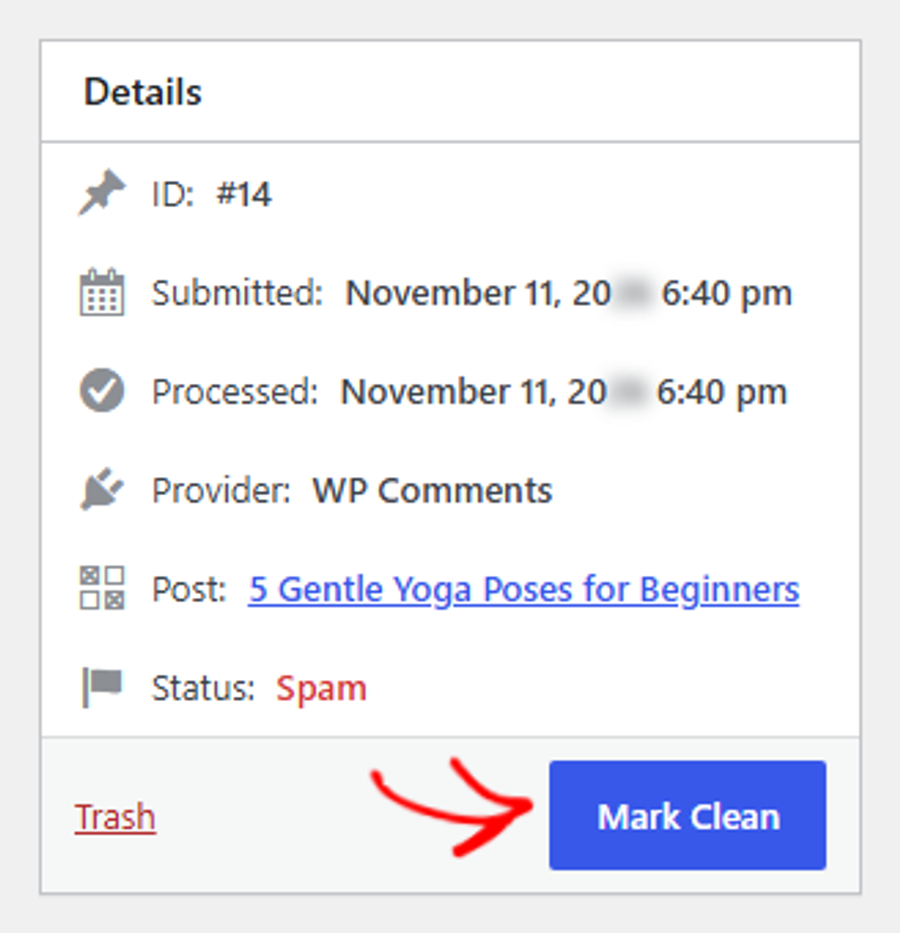
You can also click Mark Clean in the Details box on the View Submission page. This box also shows which plugin the submission came from and its current status.
ActiveLayer shows the message Submission marked as clean. and changes the status to Clean. It also lets ActiveLayer know about the mistake.
If spam got through as Clean, use Mark Spam the same way. It appears in place of Mark Clean on clean submissions.
Note: For WordPress comments and saved WPForms entries, marking a submission also moves the comment or entry itself. Mark Clean takes it out of spam, and Mark Spam moves it to spam. For other plugins, only the status in ActiveLayer changes.
Sometimes ActiveLayer can’t give a verdict at all. Here’s how to handle those submissions.
Rechecking Failed Submissions
A submission shows Failed when ActiveLayer couldn’t finish checking it. To check it again, hover over its row and click Recheck.

ActiveLayer shows the message Submission queued for recheck. and checks the submission again in the background.
Next, you’ll see how to work with several submissions at once.
Using Bulk Actions
To change several submissions at once, check the box next to each one. Then, choose an action from the Bulk actions dropdown and click Apply.
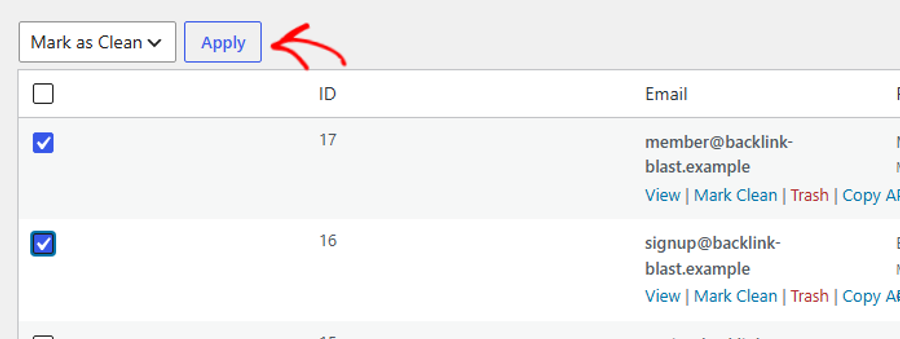
The bulk actions are:
- Mark as Clean: Changes the selected spam submissions to Clean.
- Mark as Spam: Changes the selected clean submissions to Spam.
- Move to Trash: Moves the selected submissions to the trash.
- Delete: Deletes the selected submissions permanently, without moving them to the trash.
The dropdown only lists the actions that fit the submissions you’re viewing. When you’re viewing Failed submissions, it also offers Recheck with API, which rechecks every selected submission at once.
To tidy up the list one submission at a time, use the trash instead.
Trashing and Restoring Submissions
To remove a single submission from the list, hover over its row and click Trash. Then, click OK when your browser asks Move this submission to the trash?
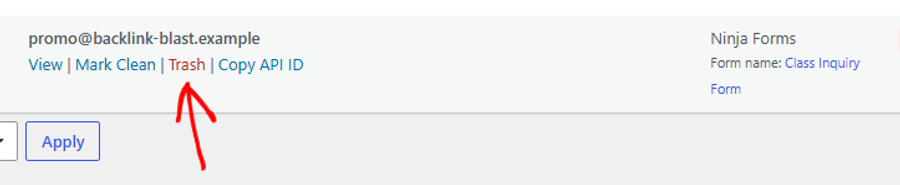
To see trashed submissions, click the Trash status link above the list. To bring one back, hover over its row and click Restore.
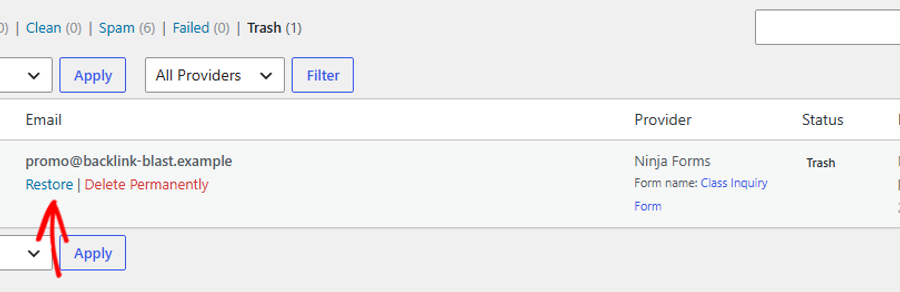
The Delete Permanently link next to Restore removes a trashed submission for good. To restore or delete several trashed submissions at once, check their boxes and use the Bulk actions dropdown.
That’s it! You can now review everything ActiveLayer checks on your site and correct any verdict, so real visitors get through without solving a CAPTCHA.
Need help? Contact ActiveLayer support, and we’ll help you get set up.
Frequently Asked Questions
How long does ActiveLayer keep submissions?
By default, ActiveLayer deletes submissions after 30 days. To change this, go to ActiveLayer » Settings. Then, choose a different period under Submission Retention, or choose Never (keep all).
Does Mark Clean create the account or entry that was blocked?
No. Mark Clean changes the status in ActiveLayer and lets ActiveLayer know about the mistake. It can’t create a signup or form entry that was blocked, so ask the person to submit it again. WordPress comments and saved WPForms entries are the exception: Mark Clean moves them out of spam.
What does Copy API ID do?
It copies the submission’s Detection ID, which you’ll also find in the API Response box on the View Submission page. It’s useful to include when you contact ActiveLayer support about a specific verdict.
Can I change a Pending or Failed submission to Clean or Spam?
No. Only Clean and Spam submissions can be marked. A Pending submission gets its verdict once ActiveLayer finishes checking it. For a Failed submission, use Recheck.
How do I show more submissions on one page?
Click Screen Options at the top right of the Submissions page. Then, set the number of items per page, up to 200, and click Apply.