
How to Stop Gravity Forms Spam with ActiveLayer
Would you like to stop Gravity Forms spam without adding a CAPTCHA to your forms? ActiveLayer checks every submission with AI on its servers and moves fake entries to your Spam folder before any notification email reaches your inbox.
This tutorial will show you how to set up ActiveLayer to block Gravity Forms spam, manage protection for individual forms, and review the spam entries it catches.
To see everything ActiveLayer does for Gravity Forms, visit our Gravity Forms integration page.
Requirements:
- You’ll need a WordPress site with Gravity Forms installed and activated. Any Gravity Forms license works, including Basic, Pro, and Elite.
- You’ll need admin access to your WordPress dashboard.
Creating Your Free ActiveLayer Account
To get started, you’ll need an ActiveLayer account. Go to activelayer.com and sign up for a free or paid plan. The free plan includes 200 spam checks and doesn’t require a credit card.
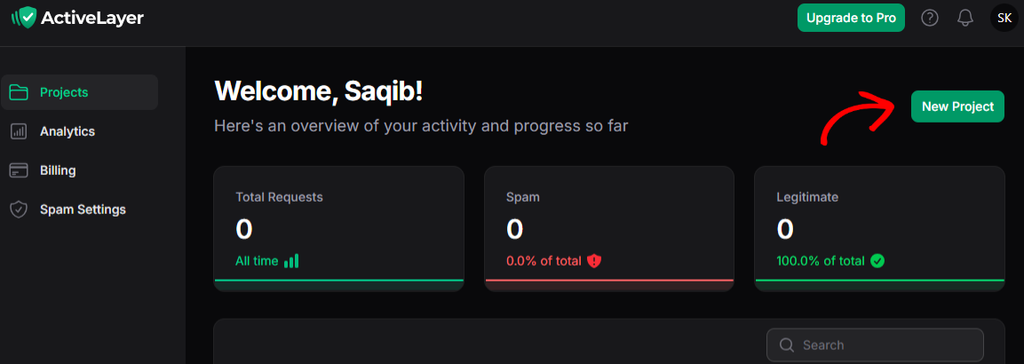
Once you’ve signed up, you’ll land on your ActiveLayer dashboard at app.activelayer.com. Click the New Project button.
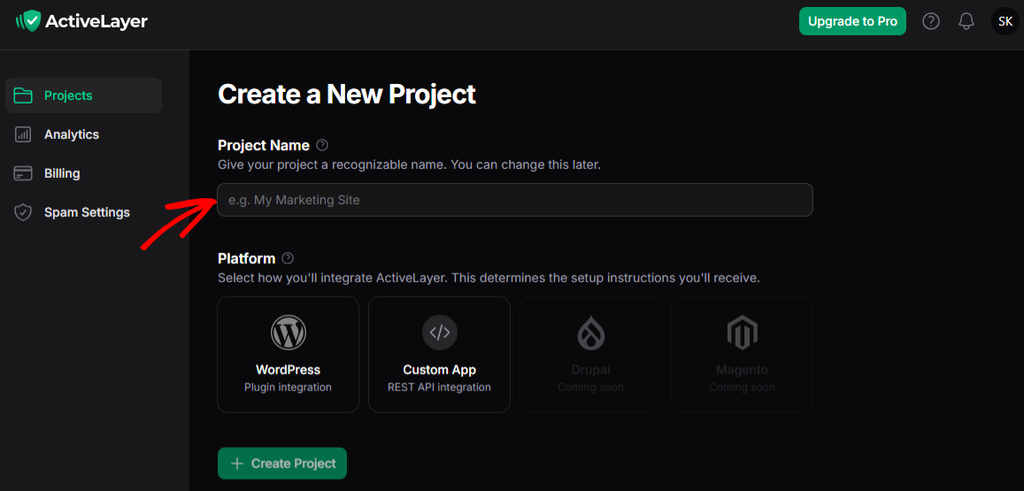
Next, enter a Project Name, select your Platform, and click Create Project. Your API key will appear on the next page.
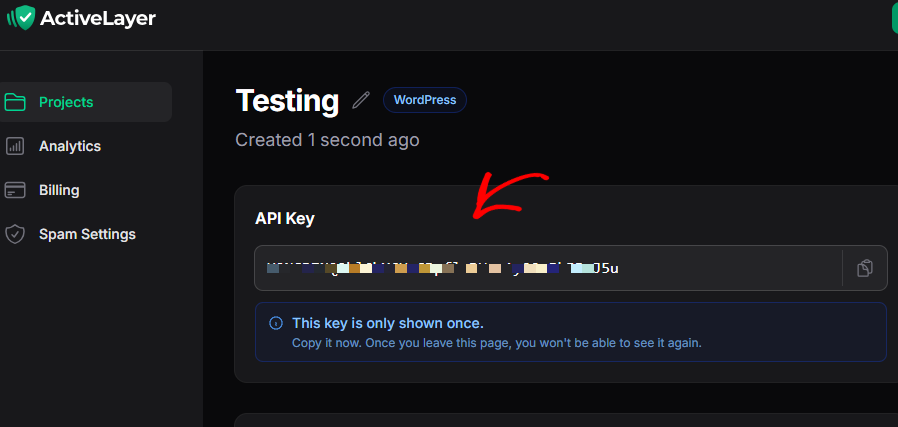
Note: Your API key is only shown once. Copy it somewhere safe, or keep this tab open until you’ve connected it to WordPress.
Installing the ActiveLayer Plugin
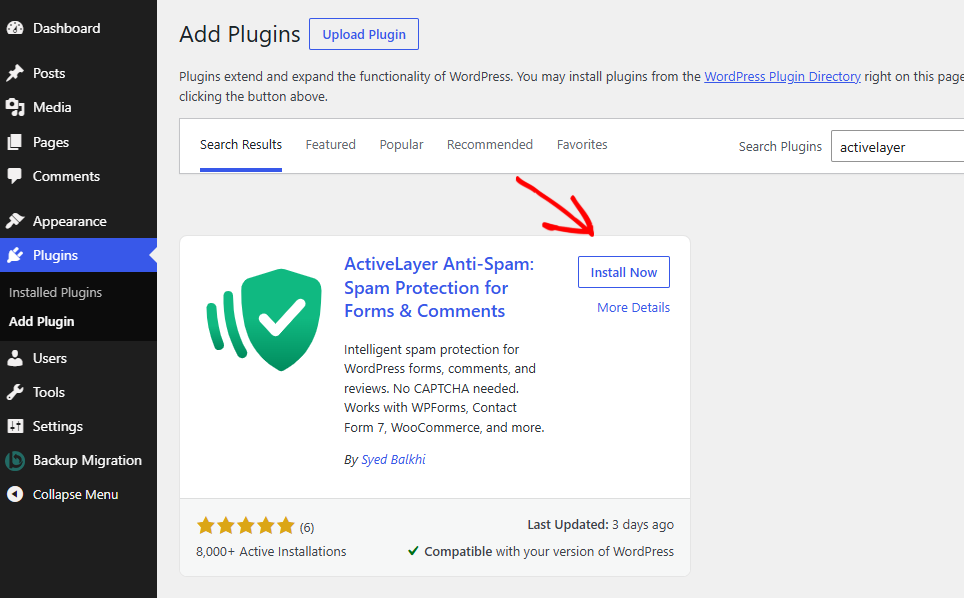
Next, you’ll need to install and activate the free ActiveLayer plugin. In your WordPress dashboard, go to Plugins > Add Plugin, search for ActiveLayer, and click Install Now. Once it’s installed, click Activate.
You’ll now see a new ActiveLayer item in your WordPress admin menu.
Connecting Your API Key
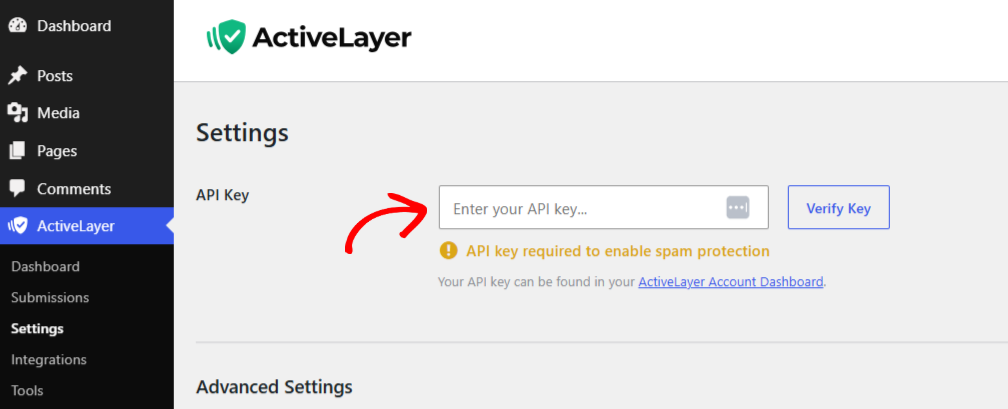
Then, go to ActiveLayer > Settings and paste your API key into the field. Click Verify Key to connect your site.
A green checkmark confirms that your site is connected.
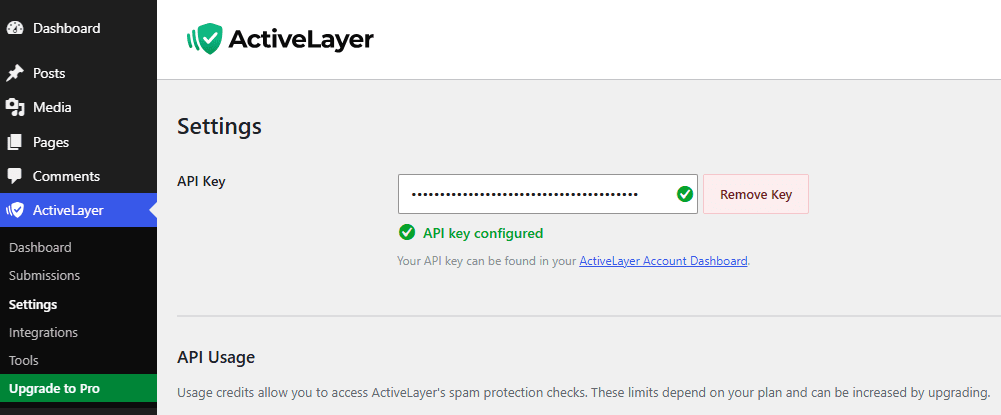
Note: If verification fails, check that you haven’t copied any extra spaces at the start or end of your key.
Turning On Gravity Forms Protection
Once your API key is verified, ActiveLayer automatically protects every Gravity Forms form on your site. There’s no extra setting to turn on, and you don’t need to edit your forms.
To confirm this, go to ActiveLayer > Integrations. You’ll see Gravity Forms in the list with an Active badge.
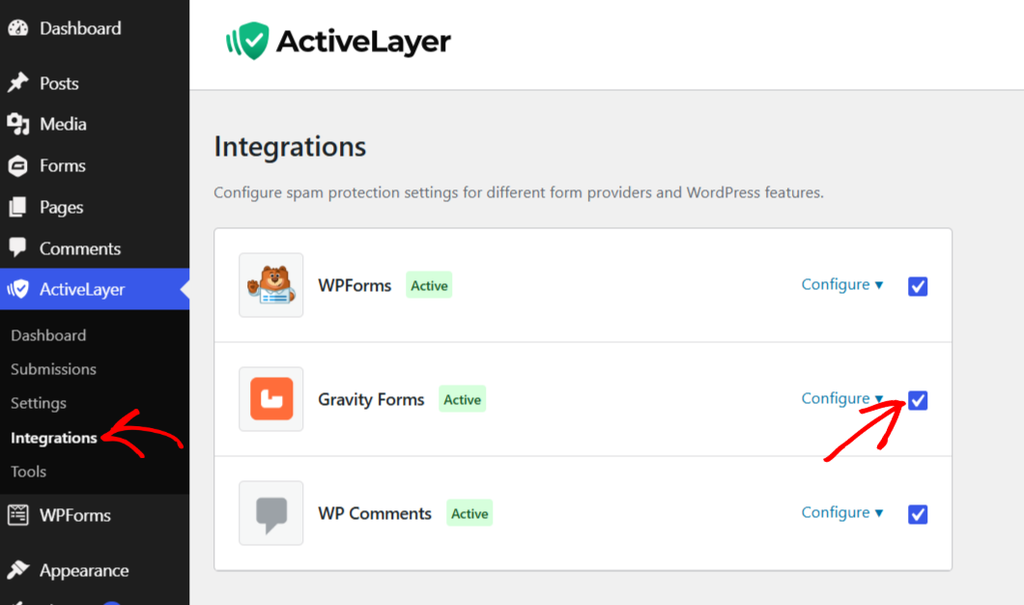
ActiveLayer checks each submission after Gravity Forms has validated the fields. If ActiveLayer flags it as spam, Gravity Forms still saves the entry but marks it as spam. Your notification emails aren’t sent for that entry, so spam never reaches your inbox.
Note: On multi-page forms, ActiveLayer checks the submission once, when the visitor submits the final page.
Turning Off Protection for a Specific Form (Optional)
If you’d like a form to skip ActiveLayer’s checks, such as an internal form only your team uses, you can turn protection off for that form alone.
To do this, go to Forms in your WordPress dashboard and open the form you’d like to change. Then, go to Settings > Form Settings and scroll down to the Form Options section. Turn off the ActiveLayer Spam Protection toggle, then click Save Settings.
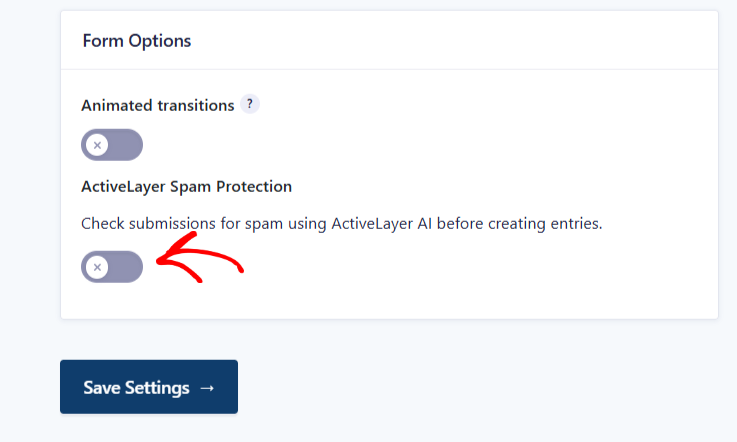
You can also turn a form off from ActiveLayer > Integrations. Click the Configure button next to Gravity Forms, uncheck the form under Select which forms to protect, and click Save Settings. Both settings stay in sync, so a change in one place shows up in the other.
Note: Turning off ActiveLayer for one form doesn’t affect your other forms. They stay protected.
Reviewing Gravity Forms Spam Entries
Because ActiveLayer marks spam instead of deleting it, you can always review what it caught. To view these entries, go to Forms > Entries and select your form. Then, click the Spam link above the entries list.
If a real entry ended up in Spam, hover over it and click Not Spam. Gravity Forms will move it back to your main entries list.
ActiveLayer also keeps its own log of every submission it checks, both spam and clean. To view it, go to ActiveLayer > Submissions. Each entry shows the IP address, provider details, date, and status (clean or spam).
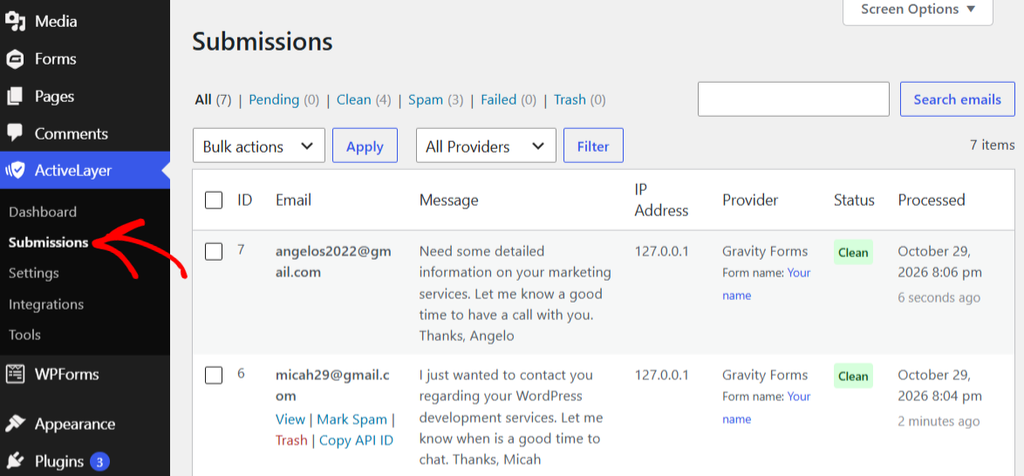
You can also see the same results on the Analytics page of your ActiveLayer dashboard at app.activelayer.com.
Note: Visitors whose submission is flagged see your form’s normal confirmation message. This way, spammers get no signal that they’ve been caught.
Testing Your Setup
It’s always a good idea to send a test submission. To do this, open one of your forms on the front end of your site, fill it in the way a real visitor would, and submit it.
Then, go to ActiveLayer > Submissions on your site or go to the Analytics page in your ActiveLayer dashboard. Your test should appear at the top of the log within a few seconds, with a clean verdict. You’ll also find the entry in Forms > Entries and receive your usual notification email.
That’s it! ActiveLayer is now checking your Gravity Forms submissions and keeping spam out of your inbox, without asking your visitors to solve a CAPTCHA.
Next, would you like to protect other plugins on your site? ActiveLayer also works with WPForms, WooCommerce, BuddyBoss, and more. See all ActiveLayer integrations.
Still stuck? Contact ActiveLayer support, and we’ll help you get set up.
Frequently Asked Questions
How do I stop Gravity Forms spam without reCAPTCHA?
Install the ActiveLayer plugin, connect your free API key, and protection turns on for every Gravity Forms form automatically. ActiveLayer checks each submission on its servers, so visitors never see a CAPTCHA, and spam entries go straight to your Spam folder.
Do I still need reCAPTCHA or the honeypot in Gravity Forms?
No. ActiveLayer checks every submission without asking visitors to do anything, so you can remove reCAPTCHA from your forms. You can keep the Gravity Forms honeypot turned on if you like, since it doesn’t affect your visitors.
Does ActiveLayer delete spam entries?
No. Spam entries stay in Gravity Forms with a spam status, so you can review them under the Spam filter and restore any real entry with Not Spam.
What happens if ActiveLayer can’t be reached?
Your forms keep working. If the ActiveLayer service is unavailable or returns an error, submissions go through as normal entries. Protection resumes automatically once the service is available again.
Does ActiveLayer work with every Gravity Forms license?
Yes. ActiveLayer uses standard Gravity Forms features, so it works the same on Basic, Pro, and Elite.
Will a spam entry still send my notification emails?
No. When ActiveLayer marks an entry as spam, Gravity Forms doesn’t send any notifications for that form. Clean entries send notifications as usual.