
How to Stop Ninja Forms Spam with ActiveLayer
Would you like to stop Ninja Forms spam without adding a CAPTCHA to your forms?
ActiveLayer checks every Ninja Forms submission with AI on its servers and keeps spam out of your inbox. Your visitors never see a puzzle or an extra step.
This tutorial will show you how to set up ActiveLayer to block Ninja Forms spam, choose which forms to protect, and test that it works.
To see everything ActiveLayer does for Ninja Forms, visit our Ninja Forms integration page.
In This Article:
Requirements:
- You’ll need a WordPress site with Ninja Forms installed and activated.
- You’ll need admin access to your WordPress dashboard.
Creating Your Free ActiveLayer Account
To get started, you’ll need an ActiveLayer account. The free plan includes 200 spam checks and doesn’t require a credit card.
If you don’t have an account yet, follow our guide on how to sign up for ActiveLayer and get your API key. It walks you through creating your first project and copying your API key, so you can then skip ahead to Installing the ActiveLayer Plugin.
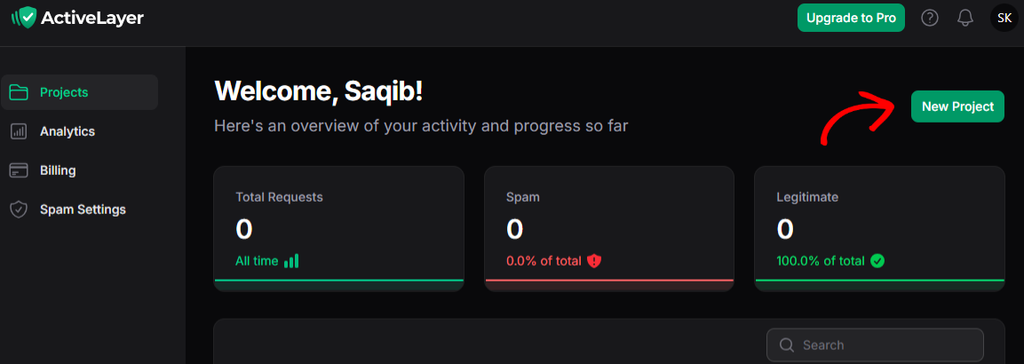
If you already have an account, log in to your ActiveLayer dashboard at app.activelayer.com and click the New Project button.
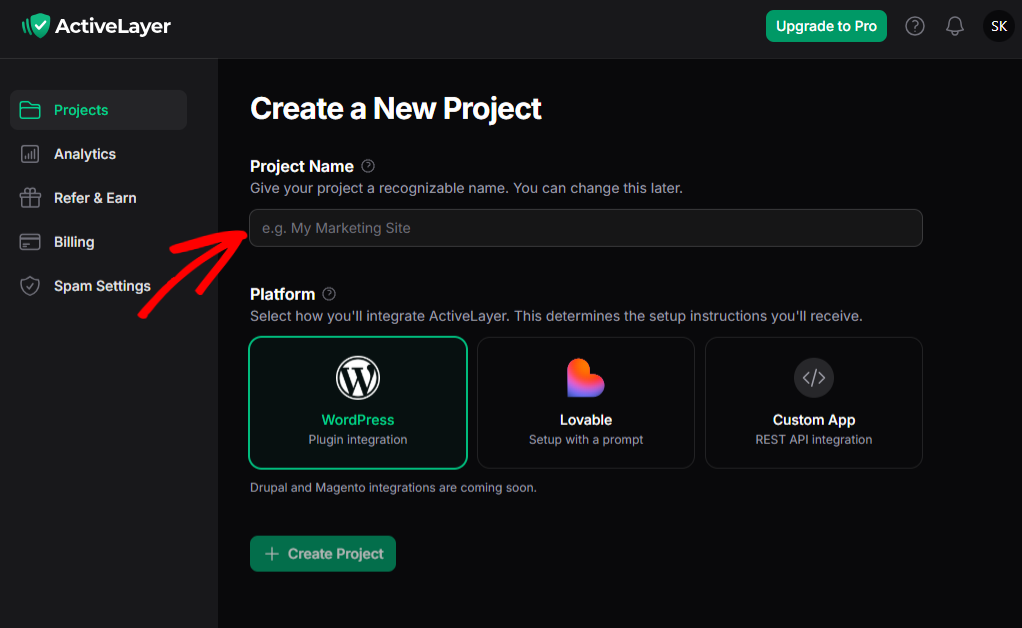
Next, enter a Project Name, select WordPress as your Platform, and click Create Project. Your API key will appear on the next page.
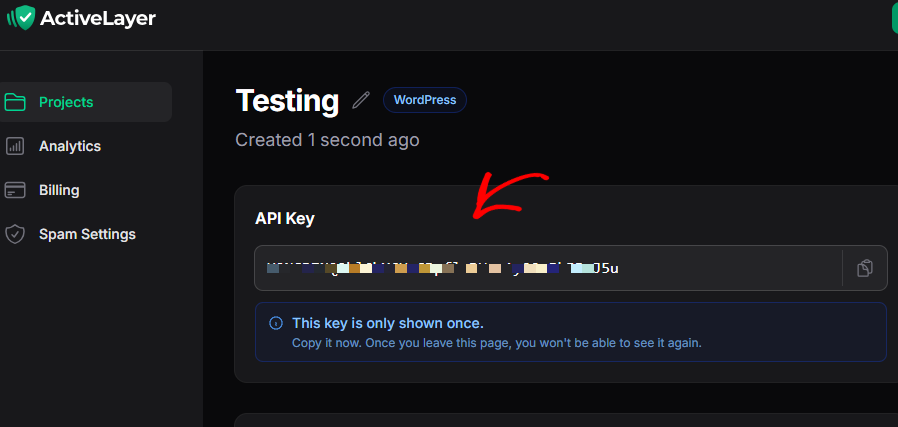
Note: Your API key is only shown once. Copy it somewhere safe, or keep this tab open until you’ve connected it to WordPress.
Installing the ActiveLayer Plugin
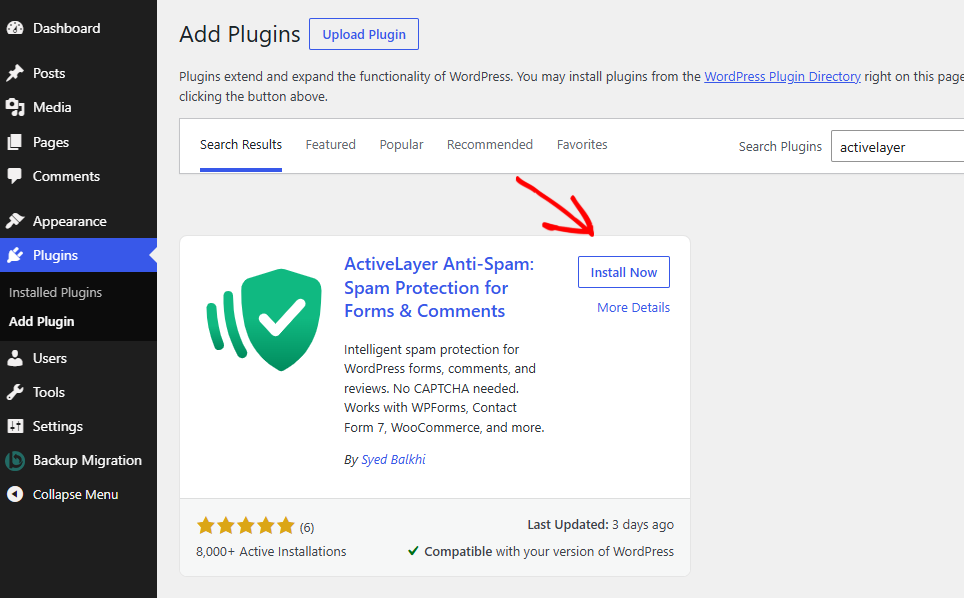
Next, you’ll need to install and activate the free ActiveLayer plugin. In your WordPress dashboard, go to Plugins » Add Plugin, search for ActiveLayer, and click Install Now. Once it’s installed, click Activate.
You’ll now see a new ActiveLayer item in your WordPress admin menu.
Connecting Your API Key
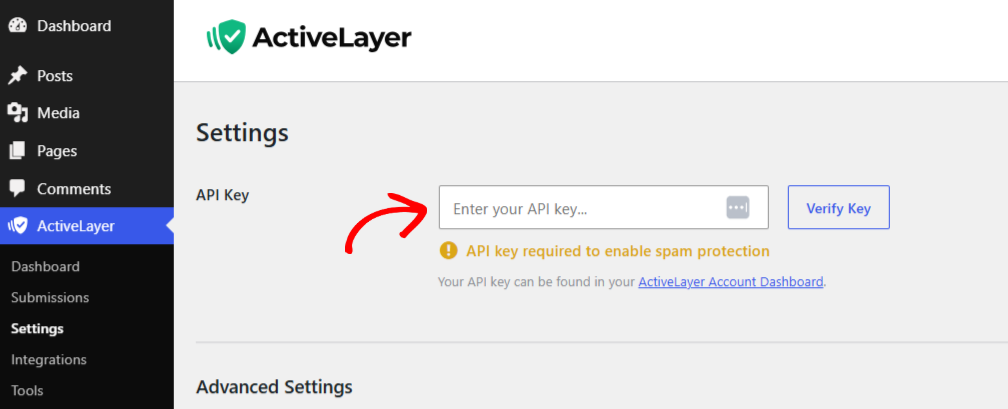
Then, go to ActiveLayer » Settings and paste your API key into the field. Click Verify Key to connect your site.
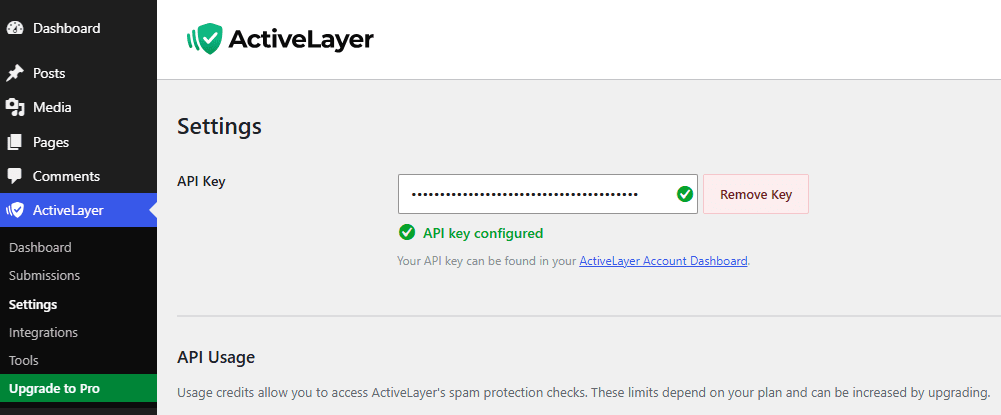
A green checkmark confirms that your site is connected.
Note: If verification fails, check that you haven’t copied any extra spaces at the start or end of your key. If you’ve lost your key, you can regenerate it from your project page.
Turning On Ninja Forms Protection
ActiveLayer detects Ninja Forms and turns on protection for all of your forms automatically.
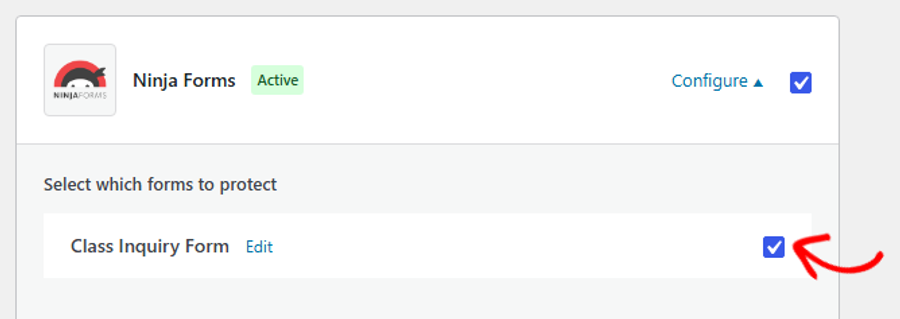
To confirm this, go to ActiveLayer » Integrations. The Ninja Forms row shows an Active badge, and its checkbox is checked.
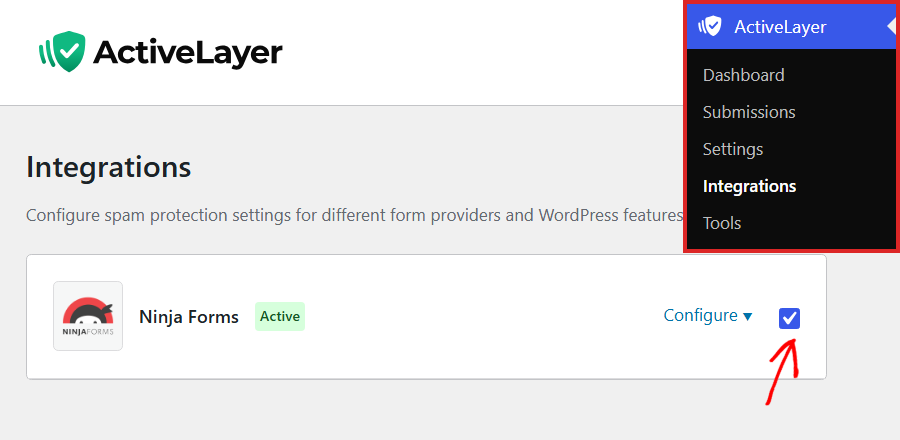
This checkbox turns protection on or off for all of your Ninja Forms at once. Changes to it save right away.
Choosing Which Forms to Protect
Every Ninja Forms form is protected by default, including forms you create later. You only need this step if you’d like a form to skip ActiveLayer’s checks, such as an internal form only your team uses.
To choose your forms, click Configure in the Ninja Forms row.
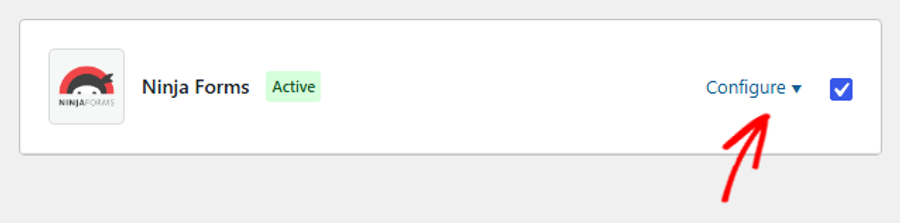
Under Select which forms to protect, you’ll see each of your forms with a checkbox. Then, uncheck any form you’d like ActiveLayer to skip. The Edit link next to each form opens it in the Ninja Forms builder.
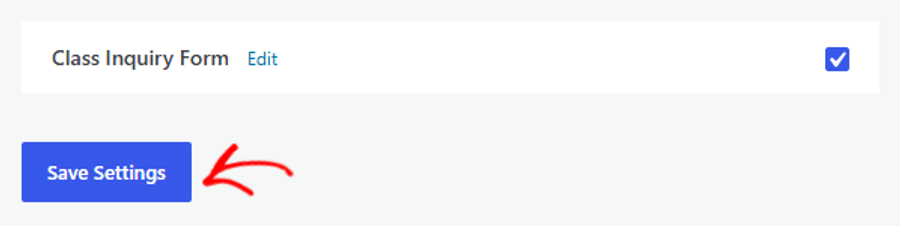
When you’re done, click Save Settings at the bottom of the panel.
If you’re already editing a form in the Ninja Forms builder, you can change this setting there too. The builder switch and the checkbox above are the same setting, so a change in either place updates the other.
To do this, open Advanced » Restrictions. At the bottom of the panel, turn the Enable ActiveLayer Protection switch on or off.
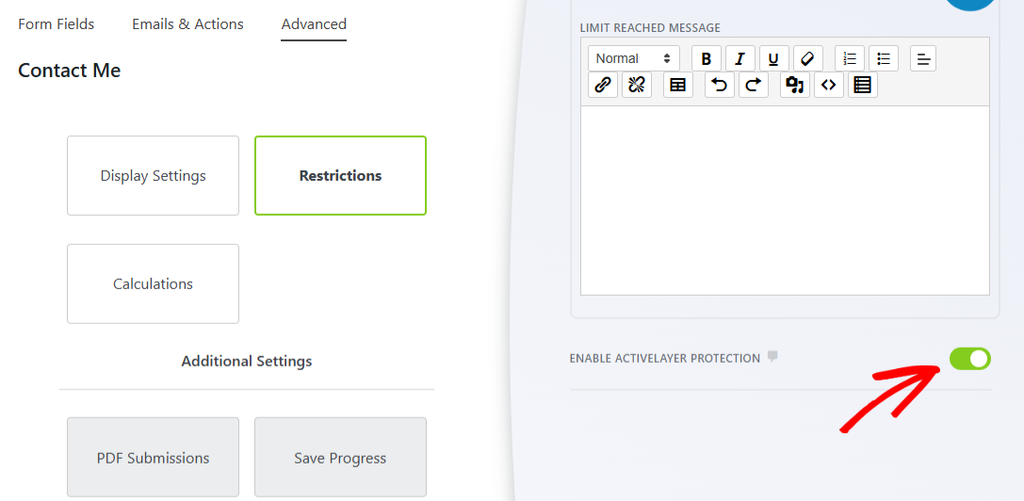
Changes in the builder are saved when you publish the form. To save your changes, click Publish at the top of the builder.

Once you’ve chosen your forms, it helps to know how ActiveLayer handles the spam it finds.
How ActiveLayer Handles Ninja Forms Spam
How ActiveLayer stops spam depends on whether a form saves its entries:
- Forms with a Record Submission action: This includes most forms, such as Ninja Forms’ default contact form. Ninja Forms saves the entry and shows your normal success message right away. ActiveLayer checks the entry in the background and holds the form’s emails until it has a verdict. When an entry is clean, its emails are sent. When an entry is spam, its emails are never sent, so spam doesn’t reach your inbox.
- Forms without a Record Submission action: ActiveLayer checks the entry before any of the form’s actions run. If it’s spam, the form stops, and the visitor sees this message:
Your submission was flagged as spam. Please try again or contact support.
You’ll find a form’s Record Submission action, if it has one, on the Emails & Actions tab of the Ninja Forms builder.
Reviewing Blocked Ninja Forms Spam
ActiveLayer logs every Ninja Forms submission it checks, whether it’s spam or not.
To see them, go to ActiveLayer » Submissions.
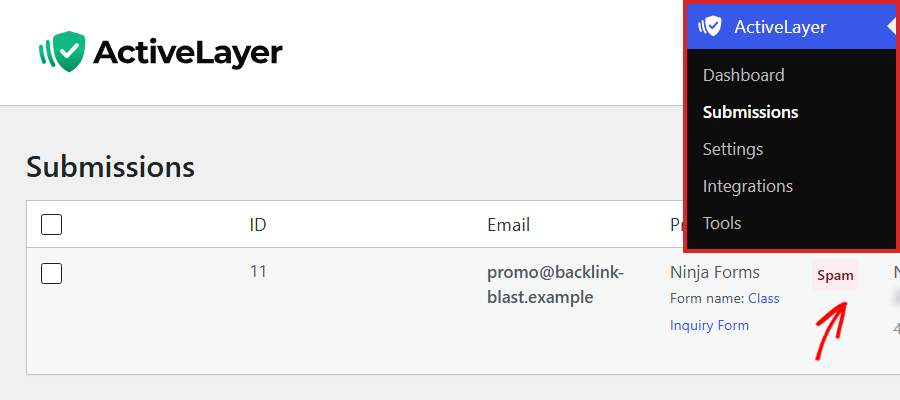
The Provider column shows Ninja Forms, with the form name below it. The Status column shows Pending while ActiveLayer is still checking an entry, then Spam or Clean.
For forms that save their entries, Ninja Forms keeps every entry in its own Submissions screen, spam included. ActiveLayer’s Submissions list labels each one Spam or Clean. That makes it the place to see which is which.
If ActiveLayer flags a real visitor by mistake, hover over the entry and click Mark Clean. This changes its status to Clean.
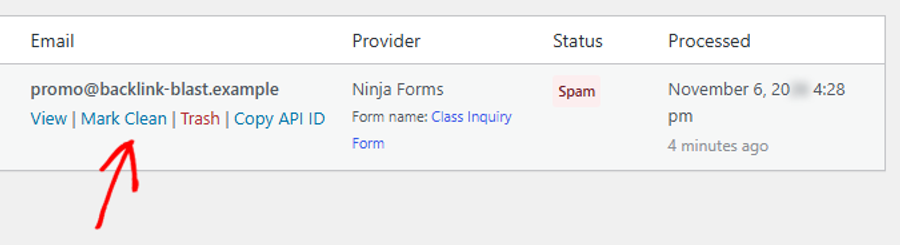
Note: Mark Clean updates the entry in ActiveLayer and lets ActiveLayer know about the mistake. The form’s held emails for that entry stay unsent. Instead, follow up with the visitor directly at the email address shown in the entry.
Next, you’ll test your setup to make sure ActiveLayer is catching spam.
Testing Your Setup
Before you rely on ActiveLayer, it’s a good idea to check that it’s working.
To do this, open a page on your site that shows one of your Ninja Forms forms. ActiveLayer checks every visitor, including logged-in users and admins, so you can test while you’re logged in.
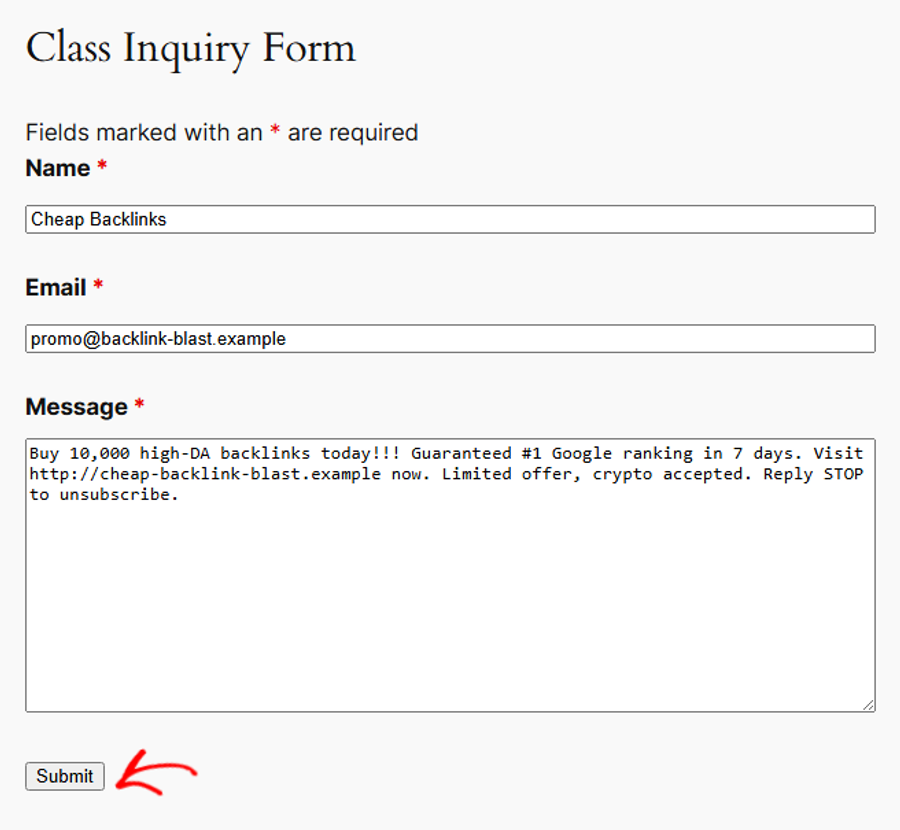
Next, fill in the form with obviously fake details, like a spammy name, an email address you don’t use, and a message full of spam keywords. Then, click Submit.
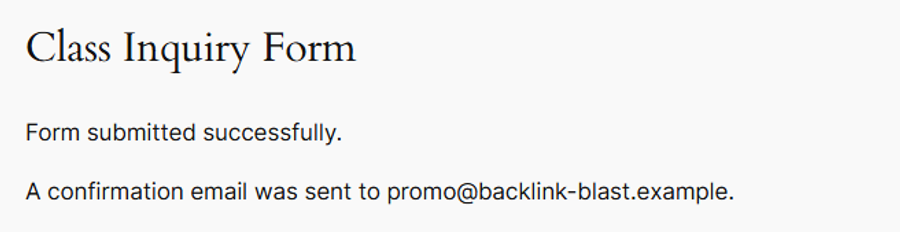
If your form saves its entries, you’ll see the form’s normal success message. This is expected, because ActiveLayer checks the entry in the background. Even if your success message says an email was sent, ActiveLayer holds that email until the check finishes.
After a short wait, your test appears at the top of the Submissions list with a Spam status. The form’s emails aren’t sent. If your form doesn’t save its entries, the form shows the spam message instead.
Note: Each test uses one of your spam checks. If your form saves its entries, remember to delete the test entry from Ninja Forms » Submissions afterward.
That’s it! ActiveLayer now checks your Ninja Forms submissions and keeps spam out of your inbox without asking real visitors to solve a CAPTCHA.
Next, would you like to protect other plugins on your site? ActiveLayer also works with WPForms, Contact Form 7, Gravity Forms, and more. See all ActiveLayer integrations.
Still stuck? Contact ActiveLayer support, and we’ll help you get set up.
Frequently Asked Questions
How do I stop Ninja Forms spam without a CAPTCHA?
Install the ActiveLayer plugin and connect your free API key. ActiveLayer then protects every Ninja Forms form automatically. It checks each submission on its servers, so real visitors don’t see a puzzle or an extra step.
Does ActiveLayer work with the free version of Ninja Forms?
Yes. ActiveLayer only needs Ninja Forms to be installed and active. It doesn’t need any Ninja Forms addons.
Why do spam entries still appear in Ninja Forms Submissions?
For forms with a Record Submission action, Ninja Forms saves each entry before ActiveLayer’s background check finishes. ActiveLayer then stops the emails for spam entries, so spam doesn’t reach your inbox. To see which saved entries are spam, check ActiveLayer » Submissions.
Why are my Ninja Forms entries stuck as Pending?
For forms that save their entries, ActiveLayer runs its checks through WordPress’s scheduled tasks. If those tasks stop running on your site, entries stay Pending, and ActiveLayer shows a queue warning on its pages. Held emails wait for up to 2 days for the checks to resume, so get your scheduled tasks running again as soon as you can. To check them, see how to view and control WordPress cron jobs.
Does ActiveLayer check submissions from logged-in users?
Yes. ActiveLayer checks every Ninja Forms submission on a protected form, including those from logged-in users and admins.
What happens if ActiveLayer can’t be reached or I run out of spam checks?
Your forms keep working as usual. If ActiveLayer can’t complete a check, the submission goes through, and any held emails are sent. The same happens once you’ve used all of your spam checks. To keep every submission checked, upgrade to a paid plan.