
How to Turn ActiveLayer Integrations On or Off
Would you like to manage your ActiveLayer integrations and choose exactly which plugins and forms get spam protection?
ActiveLayer detects the supported plugins on your site and turns on protection for them automatically. From the Integrations page, you can turn each one on or off and pick which of its forms get checked.
This tutorial will show you how to turn ActiveLayer integrations on or off, choose which forms it protects, and find each integration’s own settings.
To see every plugin ActiveLayer works with, visit our integrations page.
Turning ActiveLayer Integrations On or Off
To get started, go to ActiveLayer » Integrations in your WordPress dashboard. You’ll see a row for each supported plugin that’s active on your site. WP Comments is always listed.
The checkbox at the right of each row turns that integration on or off. To stop ActiveLayer from checking a plugin’s submissions, uncheck its box.
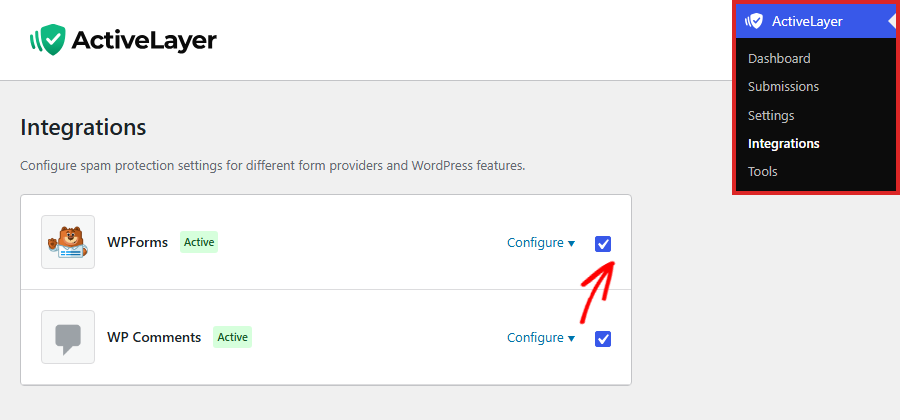
Your change saves right away. There’s no button to click. The integration’s badge changes from Active to Paused.
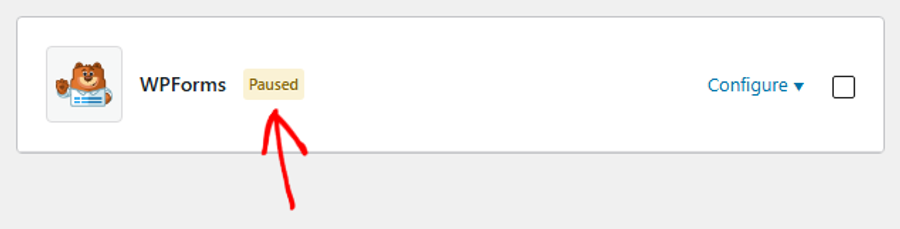
To turn protection back on, check the box again. The badge returns to Active.
Note: Every integration also shows Paused while your API key isn’t connected. If a checked integration says Paused, check your key in ActiveLayer » Settings.
Choosing Which Forms to Protect
For form plugins, like WPForms, you can turn protection on or off for each form. To see your forms, click Configure in the plugin’s row.
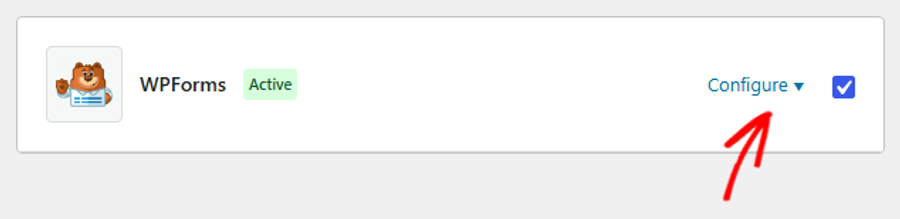
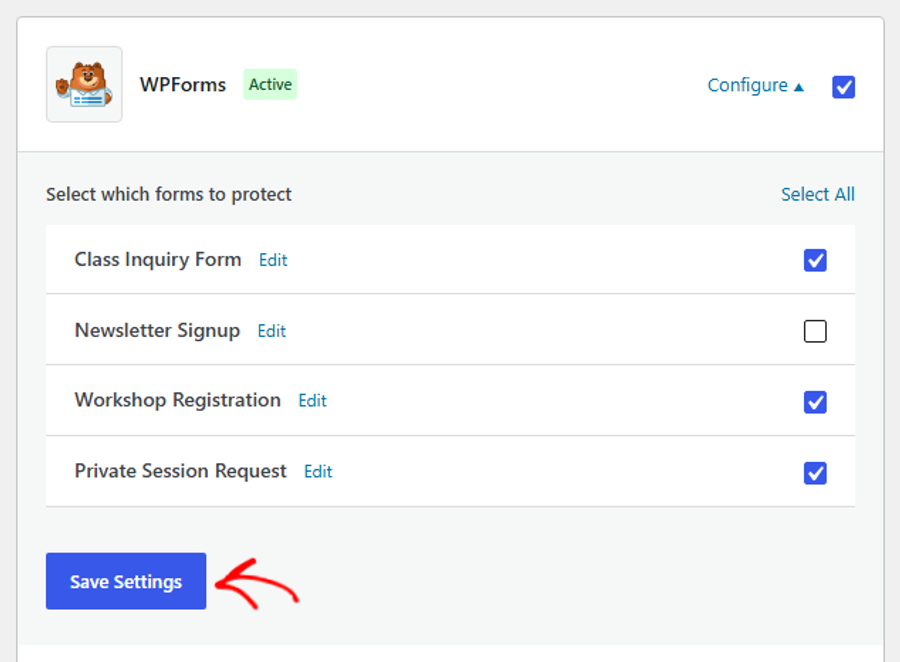
The panel lists your forms. Each form is checked, and so protected, by default.
To turn off protection for a form, uncheck its box. Once any form is unchecked, a Select All link appears at the top of the list. Clicking it checks every form again.
To open a form in its form builder in a new tab, click Edit next to its name. When you’re done, click Save Settings at the bottom of the panel.
ActiveLayer shows the message Settings saved. to confirm your change.
Changing an Integration’s Settings
Some integrations protect something other than forms, like comments, reviews, or member signups. Their Configure panel holds settings for that integration instead of a forms list.
For example, the WP Comments panel lets you choose whether to check logged-in users, approve clean comments automatically, and move spam to the spam folder.
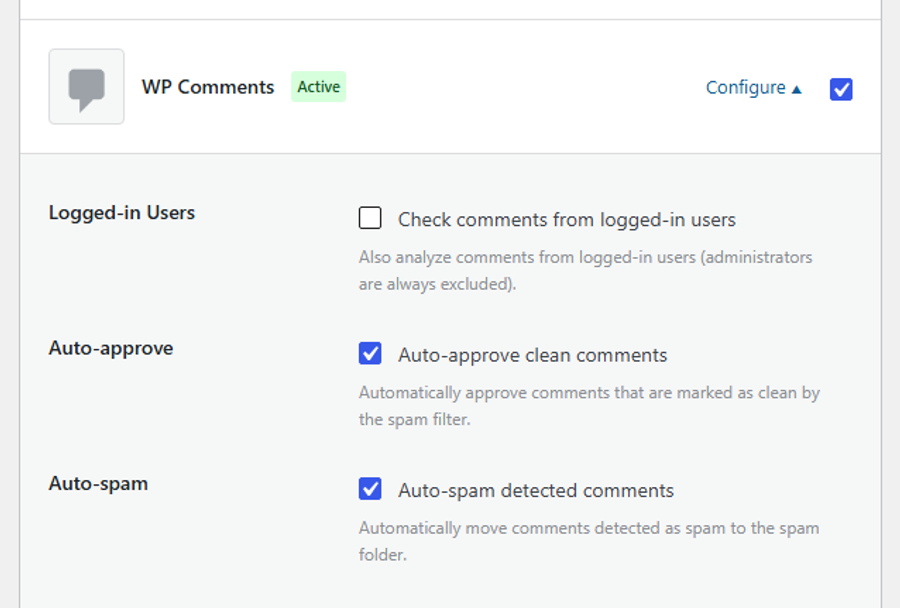
Each panel has its own save button below its settings.
For a full walkthrough of each integration’s settings, see its guide in the ActiveLayer docs.
That’s it! You’ve now chosen exactly what ActiveLayer protects on your site, so it keeps spam out without asking real visitors to solve a CAPTCHA.
Next, would you like to protect other plugins on your site? ActiveLayer also works with WooCommerce, Contact Form 7, Gravity Forms, and more. See the documentation on ActiveLayer integrations.
Need help? Contact ActiveLayer support, and we’ll help you get set up.
Frequently Asked Questions
Why isn’t a plugin I use listed on the Integrations page?
The Integrations page only lists supported plugins that are installed and active on your site. Activate the plugin, and its row will appear. To check whether a plugin is supported, see all ActiveLayer integrations.
Are new forms protected automatically?
Yes. New forms are protected by default, so you don’t need to visit the Integrations page each time you create one. Only forms you uncheck are skipped.
Does turning off an integration delete its submissions?
No. Turning off an integration only stops ActiveLayer from checking new submissions from that plugin. Submissions it already checked stay under ActiveLayer » Submissions.