
How to Delete ActiveLayer Submissions with the Tools Page
Would you like to clear old, spam, or trashed submissions from ActiveLayer in a few clicks?
The Tools page in ActiveLayer has four tools for deleting the submissions that ActiveLayer has logged on your WordPress site. Each one removes a different set, from only the oldest entries to everything.
This tutorial will show you how to open the Tools page, use each tool, and choose the right one.
In This Article:
Opening the Tools Page
To get started, go to ActiveLayer » Tools in your WordPress dashboard.
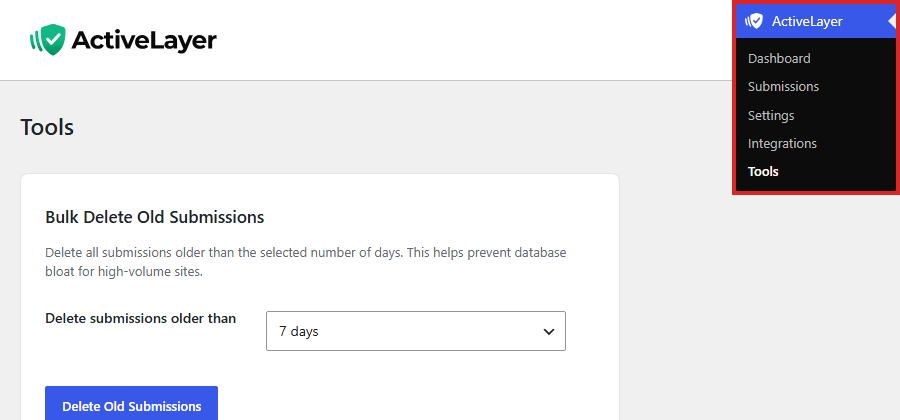
The page has one box for each tool. Deleting can’t be undone. ActiveLayer asks you to confirm in a browser message before it deletes anything.
Next, you’ll start with the tool that clears out the oldest submissions.
Note: These tools delete the submissions that ActiveLayer has logged. They don’t delete the entries that your form plugin saved, such as WPForms entries.
Deleting Old Submissions
To clear out submissions that are older than a certain age, use the Bulk Delete Old Submissions box. In the Delete submissions older than dropdown, choose 7 days, 15 days, 30 days, or 90 days. The dropdown starts at 7 days.
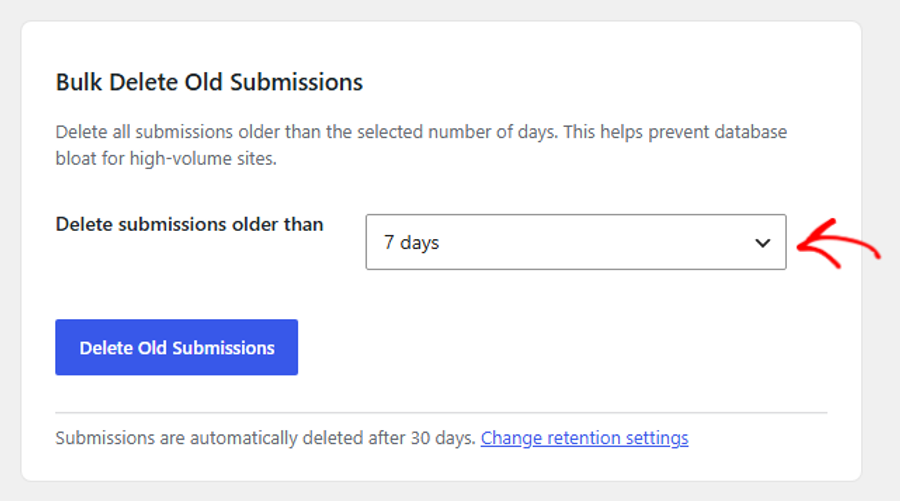
Then, click Delete Old Submissions.
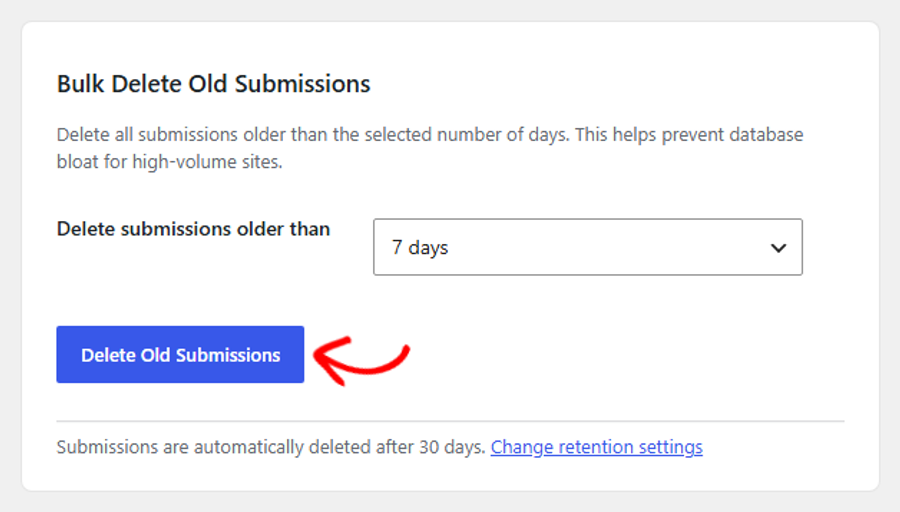
Your browser asks Are you sure you want to delete all submissions older than the selected period? This action cannot be undone. Click OK to continue.
ActiveLayer then shows how many submissions it deleted. If nothing is older than the period you chose, the message reads 0 submissions deleted successfully.
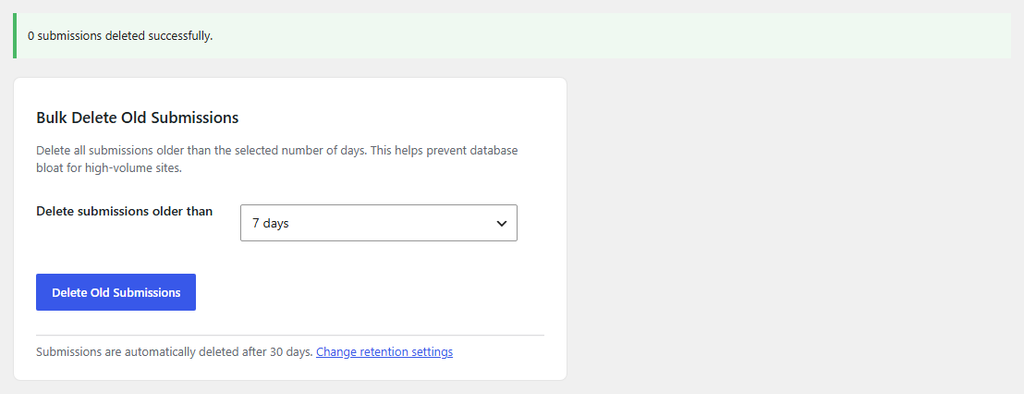
This tool deletes clean submissions and spam submissions alike. Changing a submission’s status later, for example with Mark Clean, doesn’t make it count as newer.
Below the button, a line tells you how long ActiveLayer keeps submissions on its own. To change that period, see our guide on how to configure ActiveLayer settings in WordPress.
Next, you can clear out the submissions you’ve already moved to the trash.
Emptying the Trash
To permanently delete the submissions in the trash, use the Empty Trash box. Click Empty Trash.
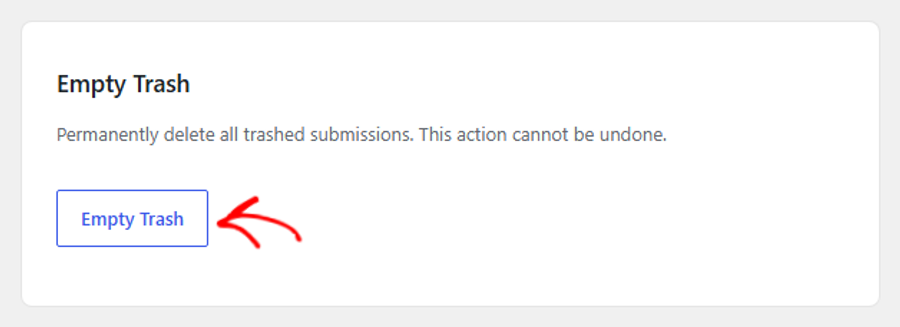
Your browser asks Are you sure you want to permanently delete all trashed submissions? This action cannot be undone. Click OK to continue.
ActiveLayer shows how many trashed submissions it deleted.
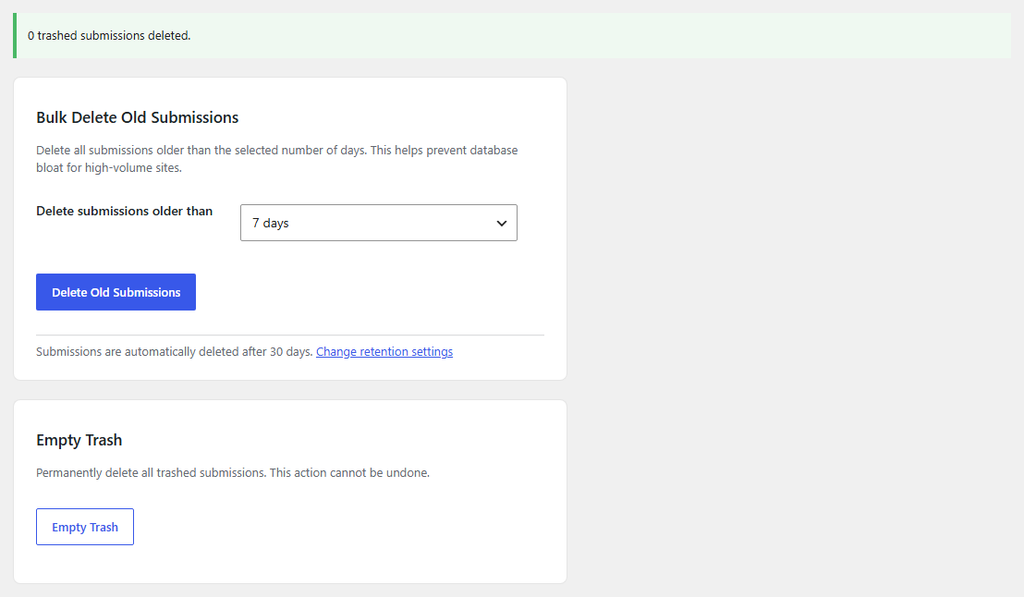
This tool only removes submissions that are in the trash. It leaves everything else in place. To learn how to move a submission to the trash, see our guide on how to review and manage ActiveLayer submissions.
Next, you can remove only the submissions that ActiveLayer marked as spam.
Deleting All Spam
To remove every submission that ActiveLayer marked as spam, use the Delete All Spam box. Click Delete All Spam.
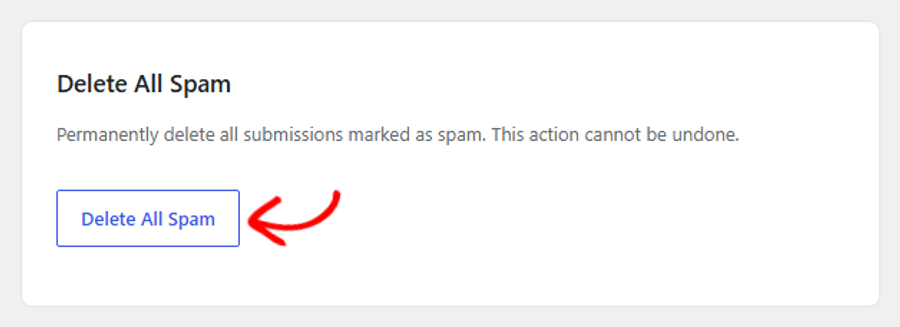
Your browser asks Are you sure you want to permanently delete all spam submissions? This action cannot be undone. Click OK to continue.
ActiveLayer shows how many spam submissions it deleted, for example 3 spam submissions deleted. This tool deletes only spam. Your clean submissions stay.
Finally, you can clear everything in one step.
Deleting All Submissions
To start over with an empty list, use the Delete All Submissions box. This tool deletes every submission, whatever its status, including the ones in the trash. Click Delete All Submissions.
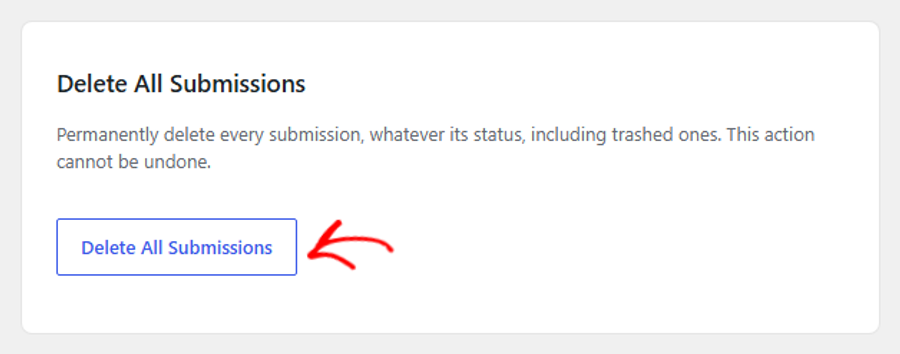
Your browser asks Are you sure you want to permanently delete all submissions, including trashed ones? This action cannot be undone. Click OK to continue.
ActiveLayer then shows how many submissions it deleted, for example 1 submission deleted.
Once you know what each tool does, you can pick the one that fits.
Choosing the Right Tool
Here is what each tool removes.
- Delete Old Submissions: clean and spam submissions that are older than 7, 15, 30, or 90 days.
- Empty Trash: only the submissions you already moved to the trash.
- Delete All Spam: only the submissions marked as spam.
- Delete All Submissions: every submission, including the trash.
That’s it! You can now clear old, trashed, spam, or all submissions from ActiveLayer in a few clicks.
Next, would you like to review your submissions before deleting them? Take a look at our guide on how to review and manage ActiveLayer submissions.
Still stuck? Contact ActiveLayer support, and we’ll help you get set up.
Frequently Asked Questions
Can I undo a deletion?
No. Every tool on the page says the action can’t be undone, which is why ActiveLayer asks you to confirm first.
Will these tools delete the entries my form plugin saved?
No. They delete only the submissions that ActiveLayer logged. Entries saved by your form plugin, such as WPForms entries, stay where they are.
Do I have to use these tools?
No. ActiveLayer also deletes old submissions on its own. The Tools page shows how long it keeps them. Use these tools when you want to clear submissions right away.
Can I choose a different number of days?
No. The Tools page offers only 7, 15, 30, and 90 days. The Submission Retention option under ActiveLayer » Settings has more choices. It sets how long ActiveLayer keeps submissions before it deletes them automatically.
Do the tools count from the date I changed a submission’s status?
No. Changing a submission’s status, for example with Mark Clean, doesn’t make it count as newer for Delete Old Submissions.