
How to Stop AffiliateWP Spam with ActiveLayer
Would you like to stop AffiliateWP spam without adding a CAPTCHA to your affiliate registration form? ActiveLayer checks every affiliate application with AI on its servers and blocks fake signups before an affiliate account or WordPress user is created.
This tutorial will show you how to set up ActiveLayer to block AffiliateWP spam, check that protection is on, and review the applications it has checked.
To see everything ActiveLayer does for AffiliateWP, visit our AffiliateWP integration page.
In This Article:
Requirements:
- You’ll need a WordPress site with AffiliateWP installed and activated, with affiliate registration turned on.
- You’ll need admin access to your WordPress dashboard.
Creating Your Free ActiveLayer Account
To get started, you’ll need an ActiveLayer account. Go to activelayer.com and sign up for a free or paid plan. The free plan includes 200 spam checks and doesn’t require a credit card.
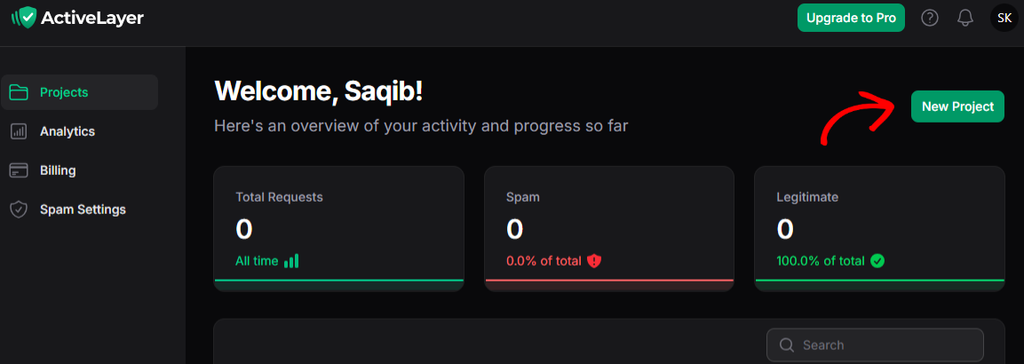
Once you’ve signed up, you’ll land on your ActiveLayer dashboard at app.activelayer.com. Click the New Project button.
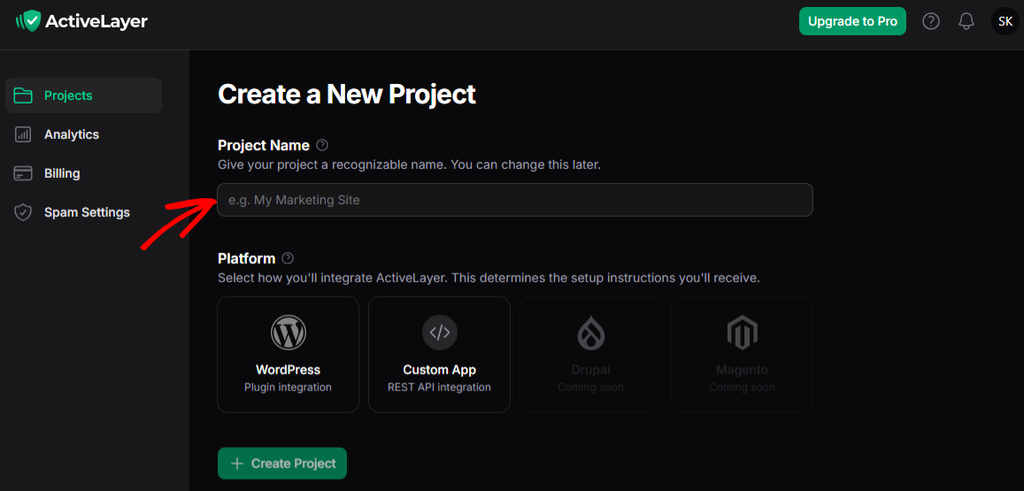
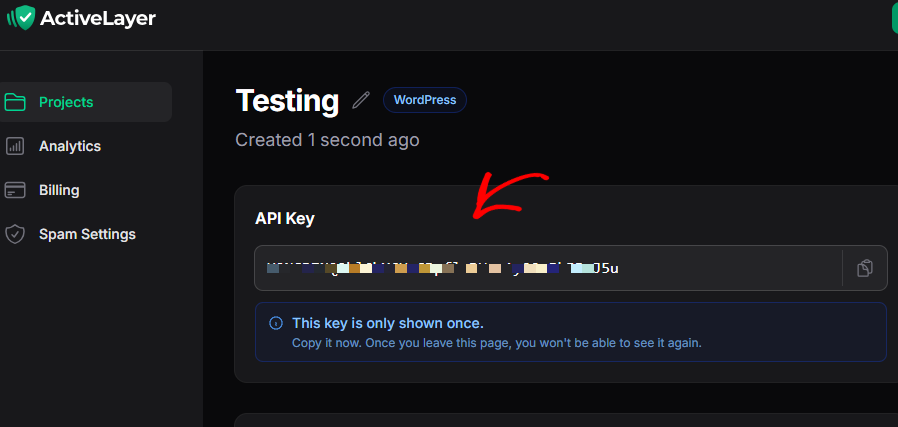
Next, enter a Project Name, select your Platform, and click Create Project. Your API key will appear on the next page.
Note: Your API key is only shown once. Copy it somewhere safe, or keep this tab open until you’ve connected it to WordPress.
Installing the ActiveLayer Plugin
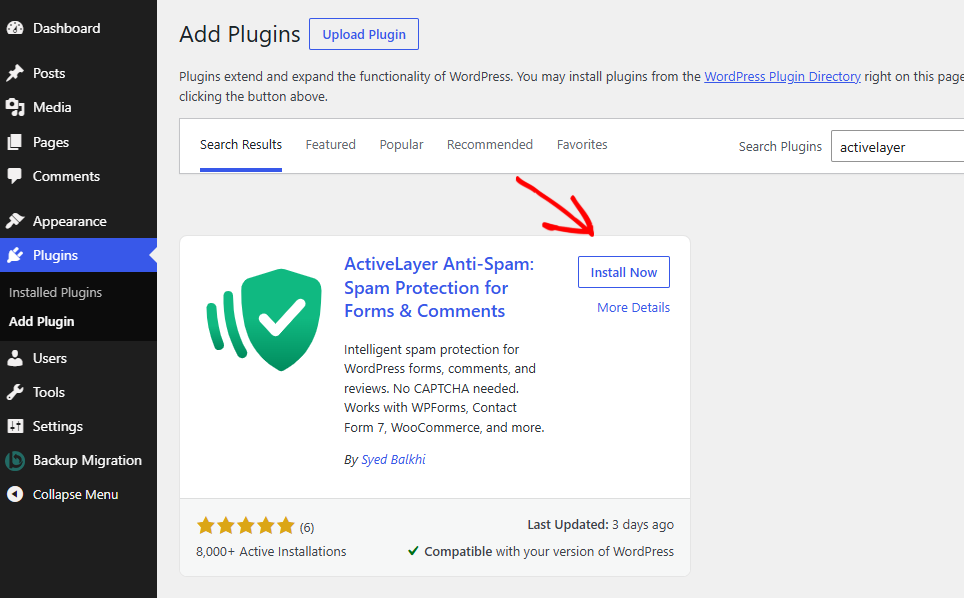
Next, you’ll need to install and activate the free ActiveLayer plugin. In your WordPress dashboard, go to Plugins > Add Plugin, search for ActiveLayer, and click Install Now. Once it’s installed, click Activate.
You’ll now see a new ActiveLayer item in your WordPress admin menu.
Connecting Your API Key
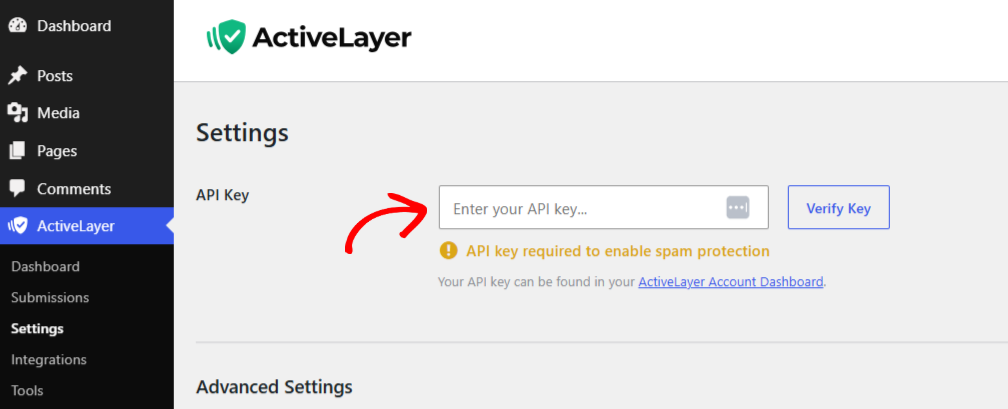
Then, go to ActiveLayer > Settings and paste your API key into the field. Click Verify Key to connect your site.
A green checkmark confirms that your site is connected.
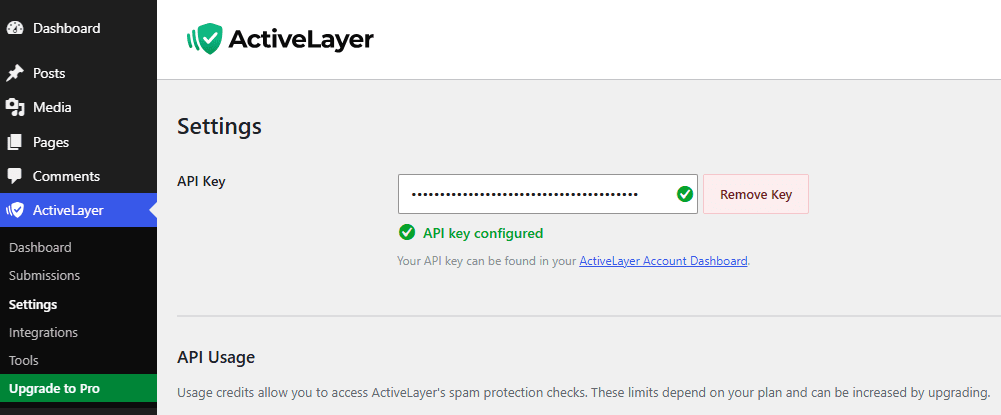
Note: If verification fails, check that you haven’t copied any extra spaces at the start or end of your key.
Turning On AffiliateWP Protection
Once your API key is verified, ActiveLayer automatically protects your AffiliateWP affiliate registration form. There’s no extra setting to turn on, and you don’t need to edit the form.
To confirm this, go to ActiveLayer > Integrations. You’ll see AffiliateWP in the list with an Active badge.
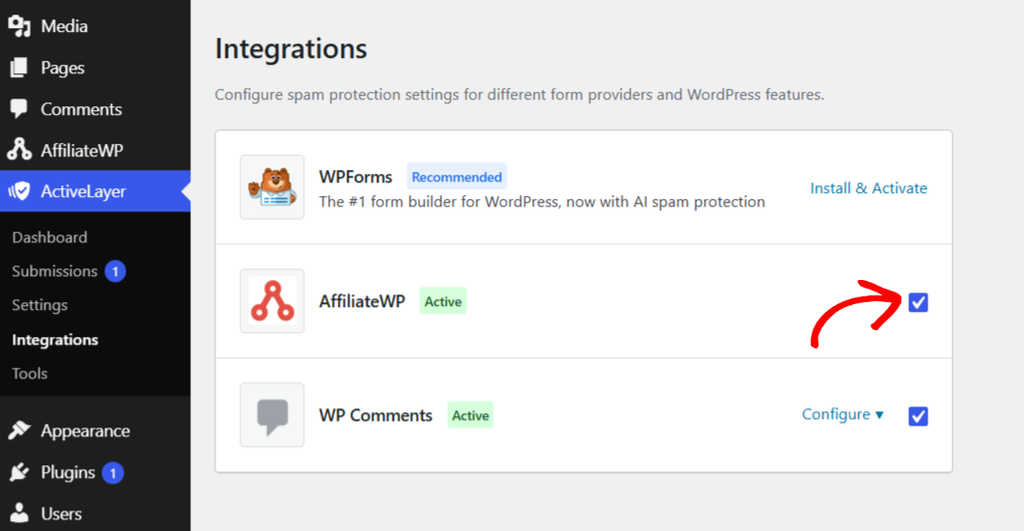
AffiliateWP has a single registration form, so protection is either on or off for the whole integration. If you ever need to pause it, go to ActiveLayer > Integrations and switch off the toggle next to AffiliateWP.
ActiveLayer checks each application after AffiliateWP’s own checks, such as required fields, and before the affiliate account is created. This works whether you added the registration form with the shortcode or the block. If AffiliateWP flags a submission as spam, ActiveLayer doesn’t waste an API call for that.
Note: Turning off AffiliateWP protection doesn’t affect ActiveLayer’s other integrations, such as your forms or comments. They stay protected.
Reviewing Blocked AffiliateWP Spam
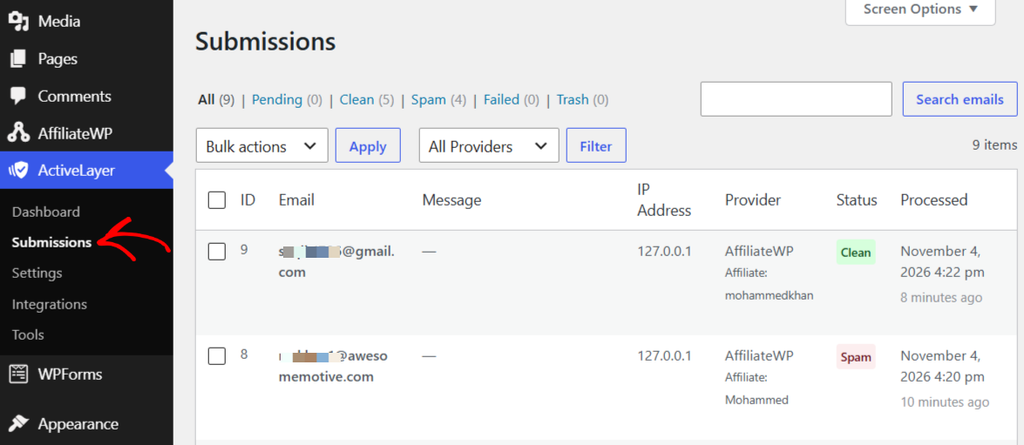
Because ActiveLayer blocks spam before the affiliate is created, you won’t find blocked applications under Affiliates in AffiliateWP. Instead, ActiveLayer keeps its own log of every application it checks, both blocked and clean. To view it, go to ActiveLayer > Submissions on your site.
Each entry shows the IP address, provider details, date, and status (clean or spam).
You can also see the same results on the Analytics page of your ActiveLayer dashboard at app.activelayer.com.
If ActiveLayer gets a verdict wrong, you can mark the entry as spam or clean right from the log.
Note: Applicants who are blocked see this message on the registration form: Registration blocked: your submission was flagged as spam. In such a case, no WordPress user is created.
Testing Your Setup
Before you rely on ActiveLayer, it’s a good idea to send a test application. To do this, log out of WordPress or open a private browser window. Then, open your affiliate registration page, fill in the form the way a real applicant would, and submit it.
Next, check the Analytics page in your ActiveLayer dashboard, or go to ActiveLayer > Submissions. Your test should appear at the top of the log within a few seconds, with a clean verdict. You’ll also find the new affiliate under Affiliates in AffiliateWP.
Note: Remember to delete or reject your test affiliate afterward, so it doesn’t stay in your affiliate list.
That’s it! ActiveLayer is now checking your AffiliateWP registrations and keeping fake affiliates out of your program, without asking real applicants to solve a CAPTCHA.
Next, would you like to protect other plugins on your site? ActiveLayer also works with WooCommerce, Easy Digital Downloads, WPForms, and more. See all ActiveLayer integrations.
Still stuck? Contact ActiveLayer support, and we’ll help you get set up.
Frequently Asked Questions
How do I stop AffiliateWP spam without a CAPTCHA?
Install the ActiveLayer plugin and connect your free API key. Protection turns on for your affiliate registration form automatically. ActiveLayer checks each application on its servers, so real applicants never see a CAPTCHA, and fake signups are blocked before an affiliate account is created.
Does ActiveLayer check affiliate referrals or coupon fraud?
No. ActiveLayer checks affiliate registrations only. It doesn’t check the affiliate login page, referrals, visits, coupons, or payouts.
Does it protect AffiliateWP forms built with WPForms or Gravity Forms?
Not through the AffiliateWP integration. If your affiliate signup form is built with a form plugin, ActiveLayer protects it through that plugin’s own integration, such as WPForms or Gravity Forms.
What happens if ActiveLayer can’t be reached?
Your registration form keeps working. If the ActiveLayer service is unavailable, returns an error, or your plan has run out of checks, applications go through as normal. Protection resumes automatically once the service is available again.
Will real affiliates get blocked?
Only when ActiveLayer is confident an application is spam. If a real applicant is ever blocked, you’ll see the entry in ActiveLayer > Submissions, where you can mark it as clean. Since no affiliate account was created, ask the applicant to apply again or add them yourself under Affiliates.