
How to Stop Fluent Forms Spam with ActiveLayer
Would you like to stop spam submissions from filling up your Fluent Forms entries? All you need is a free ActiveLayer account and a few minutes. This guide walks you through connecting ActiveLayer to your site and turning on spam protection for your Fluent Forms. What you’ll need: a WordPress site with Fluent Forms installed […]
Would you like to stop spam submissions from filling up your Fluent Forms entries? All you need is a free ActiveLayer account and a few minutes.
This guide walks you through connecting ActiveLayer to your site and turning on spam protection for your Fluent Forms.
What you’ll need: a WordPress site with Fluent Forms installed and admin access to your dashboard.
Step 1: Create Your Free ActiveLayer Account
Head to activelayer.com and sign up for a free or paid plan. The free plan includes 200 spam checks (one-time), and you don’t need to enter a credit card.
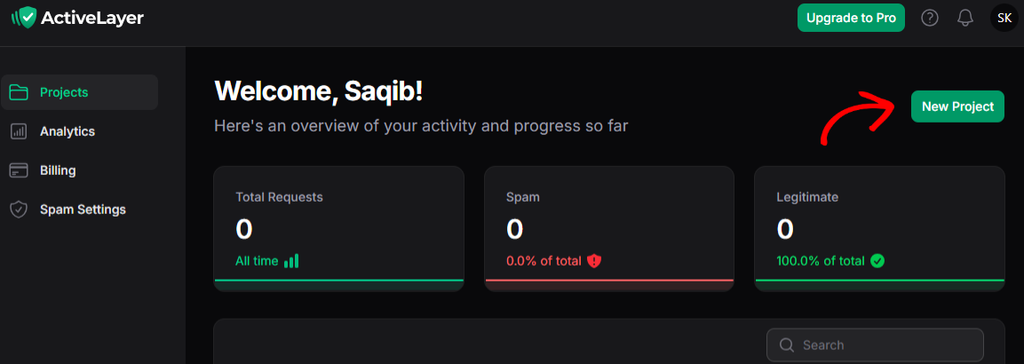
Once you’ve signed up, you’ll be redirected to the ActiveLayer dashboard at app.activelayer.com. Click the New Project button to create a new Project.
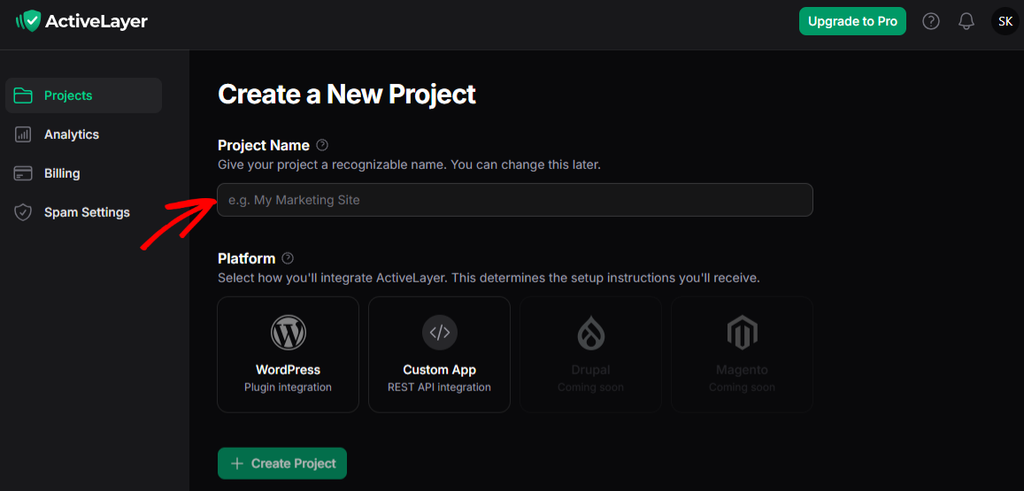
Enter your Project Name (which can be used to recognize your site), select your Platform, and then click on the Create Project button.
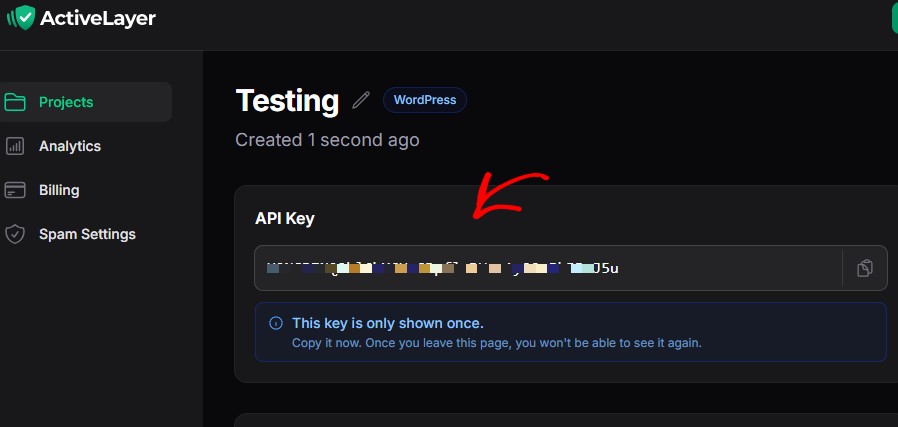
From the next page, you’ll be able to copy the API key. This key connects your WordPress site to ActiveLayer, so copy it or keep this tab open. You’ll need the key in Step 3. Also, note that this key is displayed only once.
Step 2: Install the ActiveLayer Plugin
In your WordPress dashboard:
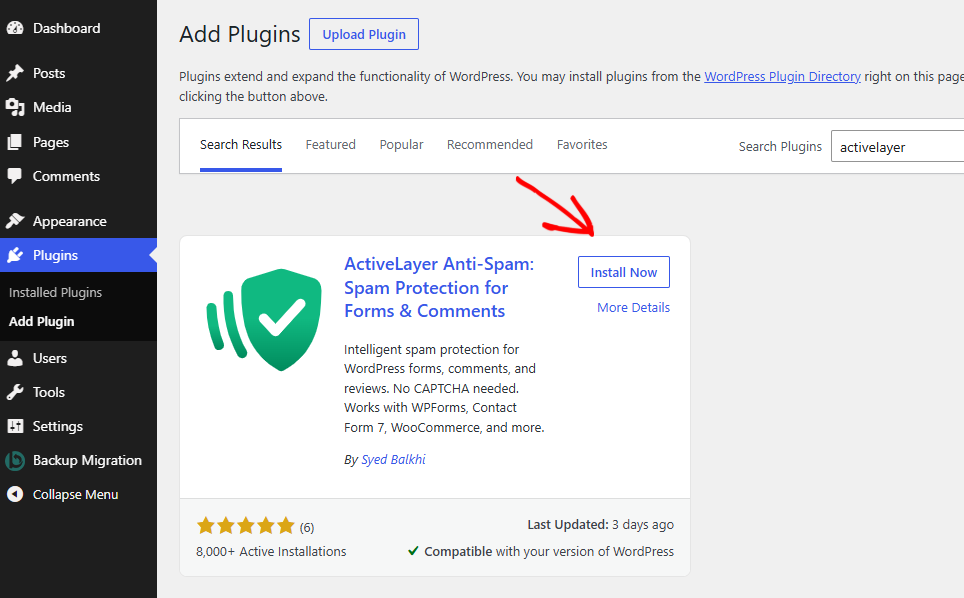
- Go to Plugins > Add Plugin.
- Search for ActiveLayer.
- Click Install Now, then Activate.
An ActiveLayer menu item appears in your admin menu once it’s active.
Step 3: Connect Your API Key
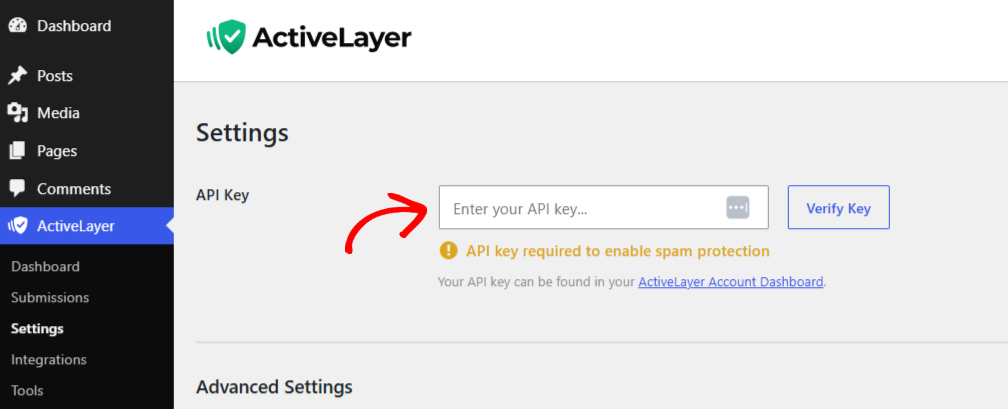
- Go to ActiveLayer > Settings.
- Paste your API key into the field.
- Click Verify Key.
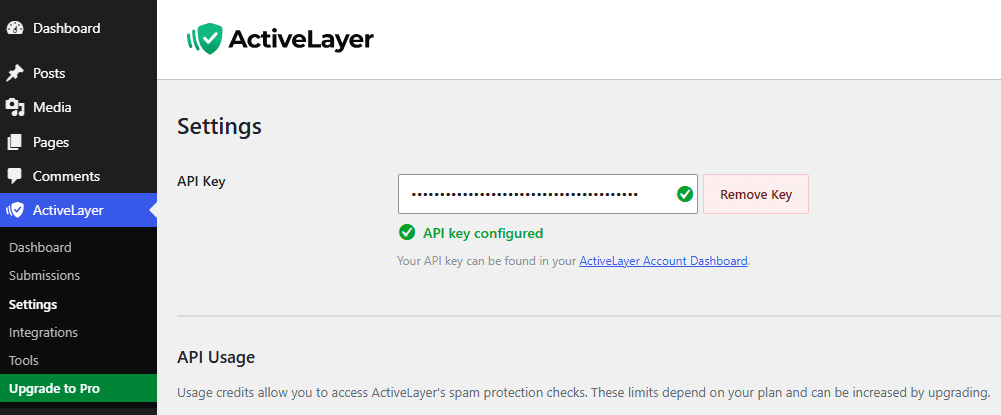
A green checkmark means your site is connected. If it doesn’t show up, check that you copied the whole key with no extra spaces at either end.
Step 4: Turn On Fluent Forms Protection
For every form on your site, go to ActiveLayer > Integrations > Fluent Forms and tick the checkbox to enable the protection.
To protect only certain forms, click Configure, then select the forms you want protected.
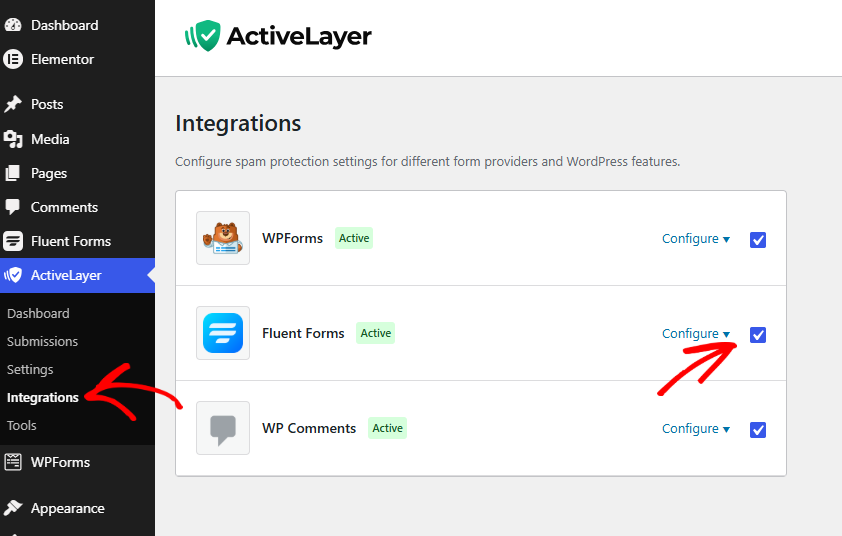
With this, spam protection is now activated for your forms. No shortcodes need to be added, and no changes are needed in the form builder.
Step 5: Test That It’s Working
Here’s how you can confirm it’s working.
- Open one of your protected forms on the front end and submit a normal test entry.
- On your site, go to ActiveLayer > Submissions or you can also go to app.activelayer.com and open the Analytics page.
Your test submission should be listed with its result and risk level.
If a verdict is ever wrong, mark it as spam or clean from that page.
What Happens to Spam Now
Every submission to a protected form is checked on ActiveLayer’s servers before it completes. Spam is blocked before it reaches your inbox, so there’s nothing to delete and nothing to skim past.
There’s no CAPTCHA, no checkbox, and nothing added to your page, so the form behaves exactly as it did before.
And if ActiveLayer is ever unreachable, submissions pass through normally rather than being blocked. You might get some spam during an outage, but you will never lose a real inquiry to one.
Frequently Asked Questions
Can I keep using Akismet or my honeypot as well?
Yes. They work differently, so running both is reasonable. Akismet matches submissions against spam it has seen before, and ActiveLayer judges the content of each submission on its own.
Will this slow my forms down?
The check runs server-side in milliseconds, and nothing is added to the page your visitors load, so there’s no impact on how fast the form feels.
What happens if ActiveLayer can’t be reached?
Submissions pass through normally instead of being blocked. Nothing is lost.
What Happens Now
Every Fluent Forms submission is checked before it reaches you, and your visitors never see a CAPTCHA or a puzzle. Every decision, with its risk level, is on the Analytics page in your ActiveLayer dashboard.
Create your free ActiveLayer account, and your forms are protected in about ten minutes.
Need help?
Contact ActiveLayer support if you run into issues installing, getting your ActiveLayer API key, or configuring Fluent Forms.