
How to Remove or Change Your ActiveLayer API Key
Would you like to switch your site to a new ActiveLayer API key, or disconnect it from ActiveLayer?
Your API key is what connects your WordPress site to your ActiveLayer project. If you lose your key or want to replace it, you can regenerate it in your ActiveLayer account and connect the new key to your site.
This tutorial will show you how to regenerate your API key, remove the old key from your site, and connect the new one.
In This Article:
Requirements:
- You’ll need a free ActiveLayer account and a project. To set one up, follow our guide on how to sign up for ActiveLayer and get your API key.
- You’ll need the ActiveLayer plugin installed on your WordPress site, and admin access to it.
Regenerating Your API Key
ActiveLayer shows your API key only once, when you create your project. After that, your project page shows the key as dots.
To get a new key, go to app.activelayer.com and sign in. On the Projects page, click the name of the project for your WordPress site.
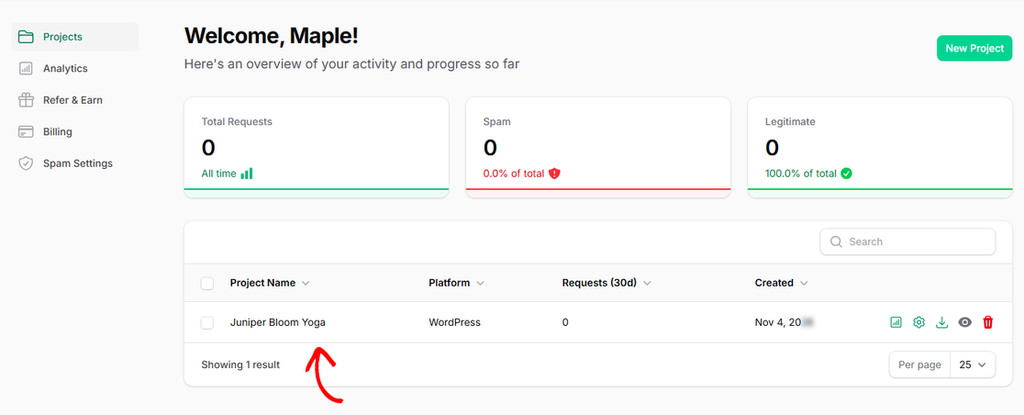
On the project page, click Regenerate Key.
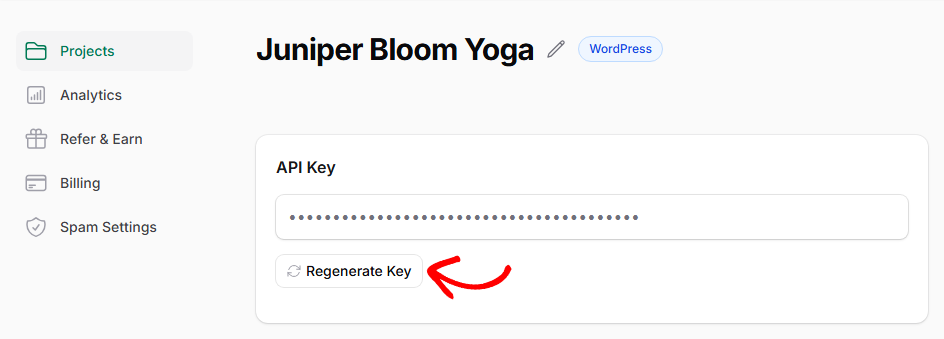
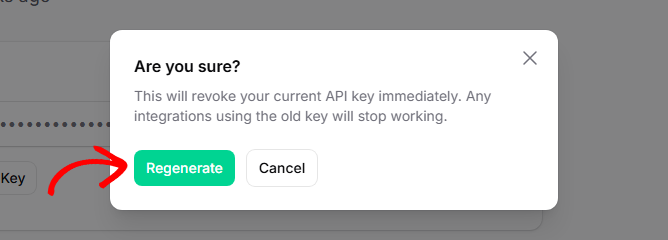
Note: ActiveLayer revokes your current key as soon as you confirm. Any site still using it isn’t protected until you connect the new key. Have your WordPress dashboard open before you continue.
ActiveLayer asks you to confirm. Then, click Regenerate to continue.
ActiveLayer shows the message API key regenerated successfully, and your new key appears on the project page.
To copy it, click the copy icon at the end of the API Key field. Then, store it somewhere safe before you leave the page, because it’s only shown once.
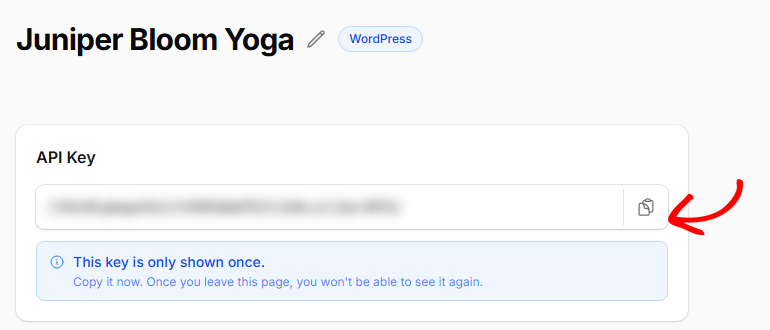
With your new key copied, you’re ready to remove the old one from your site.
Removing Your Current API Key
To remove the old key from your site, go to ActiveLayer » Settings in your WordPress dashboard.
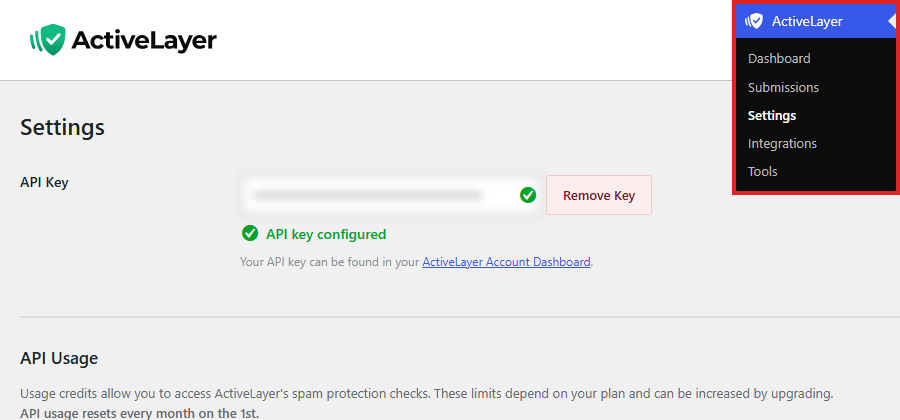
While your site is connected, the key field shows a green checkmark and the message API key configured.
In the API Key section, click Remove Key. Then, click OK when your browser asks Remove the current API key?
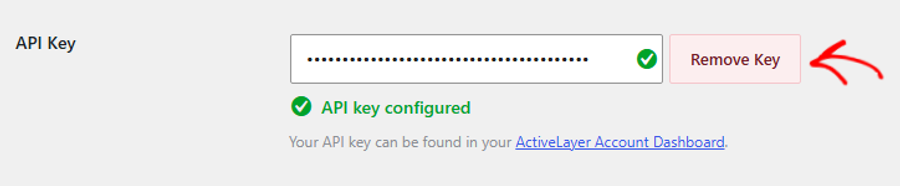
Once the key is removed, the field is empty and shows the message API key required to enable spam protection.
Note: If you only want to disconnect your site, you can stop here. Your forms keep working. ActiveLayer doesn’t check submissions for spam until you connect a key again.
If you’re switching to a new key, continue to the next section to connect it.
Connecting Your New API Key
To connect the new key, paste it into the API Key field. Then, click Verify Key.
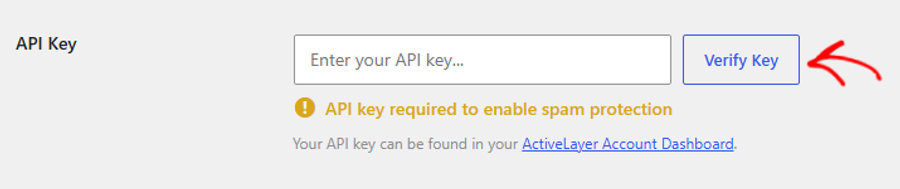
Once your key is verified, ActiveLayer shows the message API key verified and saved! and reloads the page with a green checkmark. Your site is now protected with the new key.
That’s it! ActiveLayer is now connected to your site with your new API key, and your old key can no longer be used.
Next, check out how to configure ActiveLayer settings in WordPress.
Still stuck? Contact ActiveLayer support, and we’ll help you get set up.
Frequently Asked Questions
Can I see my current API key again?
No. ActiveLayer shows your key only once, when you create your project. Later visits show it as dots. If you’ve lost it, regenerate it as shown above.
What happens to my old key when I regenerate?
ActiveLayer revokes it as soon as you click Regenerate in the confirmation message. Any site still using the old key needs the new one, as shown in Connecting Your New API Key.
Will my forms stop working if I remove my API key?
No. Your forms keep working. ActiveLayer doesn’t check submissions until you connect a key again. Spam isn’t blocked in the meantime.